Connect Claude or another AI assistant
You can connect an AI app such as Claude to your AMM Distro account and ask it questions like "how is my new single doing", "what did I earn last month" or "is my release live yet". It sees what you see and can't change your releases or money.
You set this up on the web in Settings → AI agents.
What the assistant can look up
Once connected, it can read:
- The accounts you belong to
- Your releases, and the details of each one
- Streams for a release and for your whole catalog
- Your earnings, in total and by track
- Your notifications
It only reads. It can't create, edit or submit releases, change splits or move money.
Streaming numbers from store reports and from Spotify for Artists come back separately, and the assistant is told not to add them together.
Connect the Claude app
- Go to Settings → AI agents. Under Set up, choose Claude app.
- Click Copy next to the server URL.
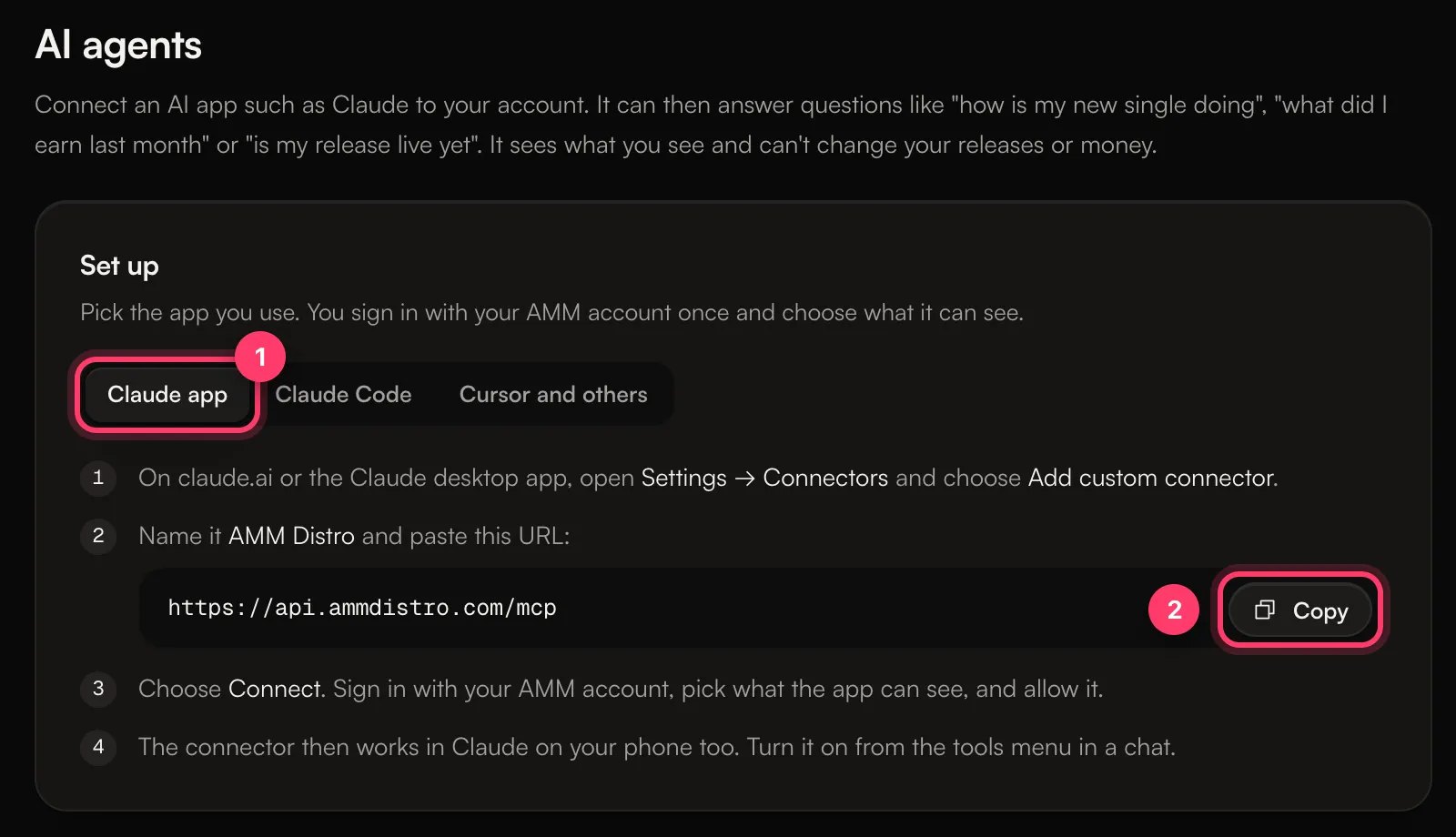
- On claude.ai or the Claude desktop app, open Settings → Connectors and choose Add custom connector.
- Name it AMM Distro and paste the URL.
- Choose Connect. Sign in with your AMM account, pick what the app can see, and allow it.
The connector then works in Claude on your phone too. Turn it on from the tools menu in a chat.
Connect Claude Code, Cursor or another app
Under Set up, choose Claude Code or Cursor and others. The page shows the exact command or settings to copy for that app.
- Claude Code: run the command shown, then start Claude Code, type
/mcp, pick AMM Distro and sign in in the browser window that opens. - Cursor and others: add the settings shown to your app's MCP settings. Apps that support sign-in will ask you to sign in with your AMM account.
Personal tokens
Some apps can't sign in and need a token instead.
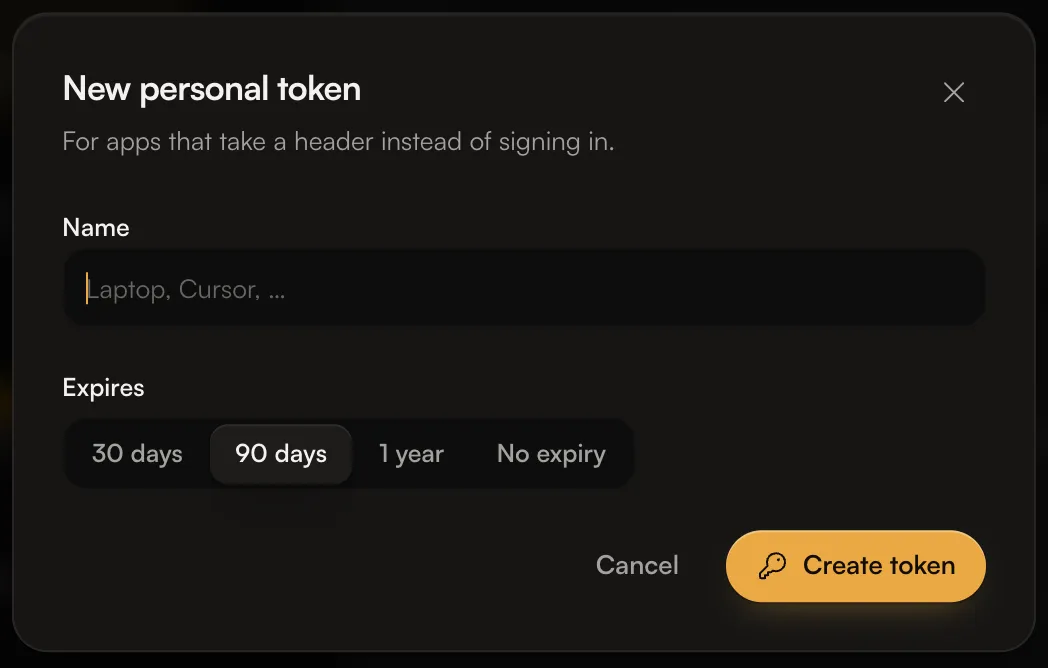
- Under Personal tokens, click New token.
- Give it a Name you'll recognise, such as "Laptop".
- Choose when it Expires: 30 days, 90 days, 1 year or No expiry.
- Click Create token and copy it.
To stop a token working, click Revoke next to it. Apps using that token stop working right away.
See or disconnect connected apps
Apps you connect by signing in are listed in your AMM account, where you can disconnect them. Click Manage connected agents on the AI agents page to open it.
Help the assistant read your numbers
Under Instructions for your agent, click Copy instructions and paste the text into your assistant's custom instructions or project notes. It explains what the assistant can look up and how to read the numbers.
Common questions
Can I do this from the mobile app?
Setup is on the web. Once Claude is connected, you can use it from the Claude app on your phone.
Which account does the assistant see?
It can see the accounts you belong to. If you have more than one, tell it which account or artist you mean.
I see "AI agent access isn't available yet. Check back soon."
This feature isn't turned on for your account yet. Contact support if you'd like access.
Related: Read your analytics · Why don't my streams match my earnings? · Switch between accounts
Updated on: 23/10/2026
Thank you!