Manage your artist profiles
Settings → Artists lists the artist profiles on your account: the names you release under, with their Spotify and Apple Music links. You pick from these when you build a release, and you can add, edit or remove them here.
Open your artist list
Go to Settings and, under Music, open Artists. The page is called Artist Profiles. Each artist shows its Spotify and Apple Music links, or "No streaming links added".
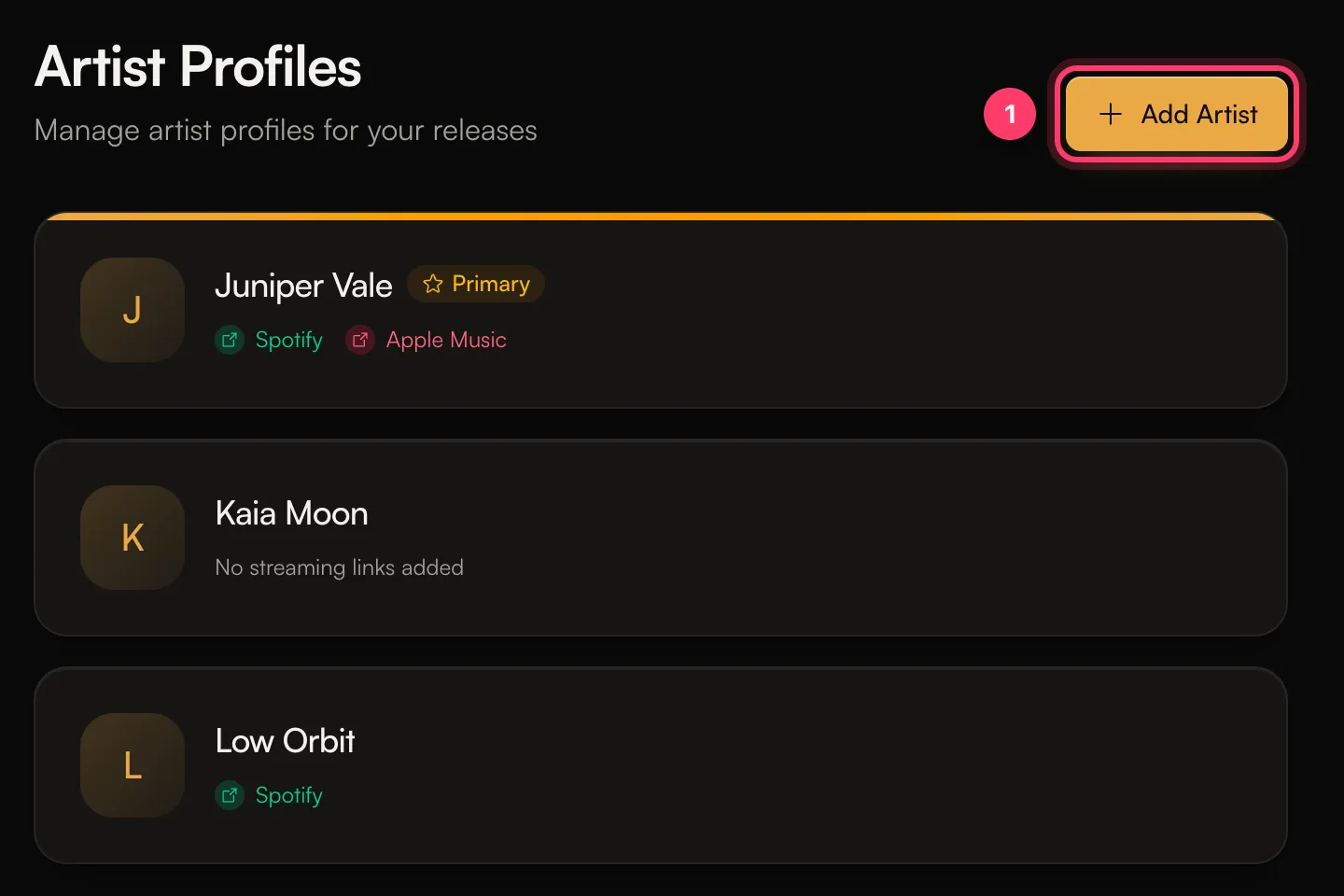
Add an artist
- Click Add Artist.
- Enter the Artist Name, exactly as it should appear in stores.
- Paste the Spotify URL (
https://open.spotify.com/artist/…) and Apple Music URL if the artist already has profiles. Leave them empty for a brand-new artist. - Tick Set as primary artist if this is your main artist name.
- Click Save Artist.
You can also add an artist while building a release: type the name in the artist field and create it there. That route also asks for the artist's legal first and last name, which every artist needs before a release can be submitted.
Why the profile links matter
The stores use these links to put your release on the right artist page. If an artist has no Spotify profile linked, the stores have to guess which page a release belongs to, and it can land on another artist with the same name.
When you paste a link, we check it against the store:
- If the link doesn't lead to an artist, you'll see "No Spotify artist found at that link".
- If the profile has a different name, you'll see a message like That Spotify profile is called "X", not "Y". Settings won't save a link with a different name. Check it's the right artist, then link it from the artist field in the release builder, where you can confirm the match.
For a brand-new artist, leave the links empty. After the first release is delivered, the stores create the profiles, and we fill in the empty links for you automatically.
Edit or remove an artist
- To edit, click the edit button on the artist's card, change the details, and click Save Artist.
- To make an artist your primary one, click the star on their card.
- To remove an artist, click the delete button and confirm. Only account Admins can delete artists.
Links lock after delivery
Once a release with this artist has been delivered to the stores, the links that are filled in are locked, so our records keep matching the stores. Empty links can still be filled in. If you try to change a locked link you'll see: "This artist has been delivered to the stores with these profile links, so they are locked. Contact support if a link is wrong."
Common questions
My release went to the wrong artist page. What do I do?
Contact support with the release name and the correct profile link. Don't change the link yourself, as it's locked after delivery and changing our record doesn't move a release that's already in stores.
Why can't I add an artist with this name?
Names must be 2 to 64 characters, and each name can only be used once per account ("An artist with this name already exists in this account").
What is the primary artist?
It's the main artist name on your account. Only one artist can be primary at a time.
Related: Create a release, step by step · Spotify Artist Profile Protection · Manage artists on your label (sub-accounts)
Updated on: 23/10/2026
Thank you!