Create a release, step by step
You build a release on one page with three sections: Release, Tracks and Review & submit. Everything saves as you type, so you can leave and come back at any time. When the checks pass, click Submit for review.
Start a new release
Click + at the top of the left menu and choose New release, or click New release on Home or New Release on the Releases page.
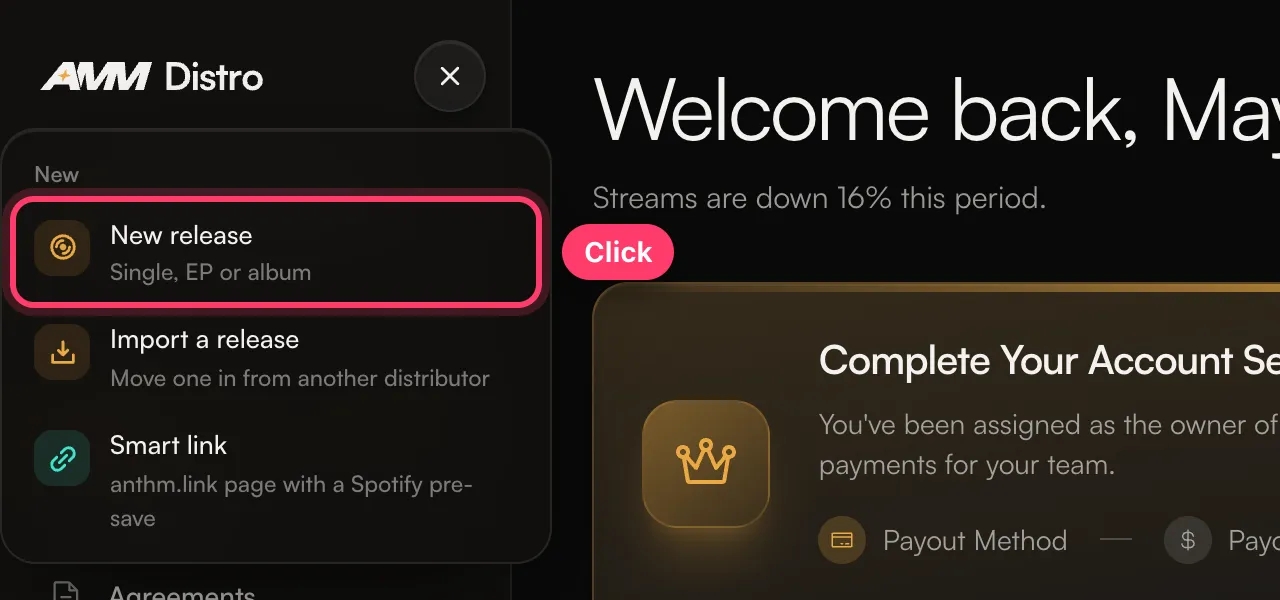
A draft called "Untitled Release" is created and the builder opens. To come back to a draft later, open it from Releases and click Edit Release.
1. Release
Add what applies to the whole release.
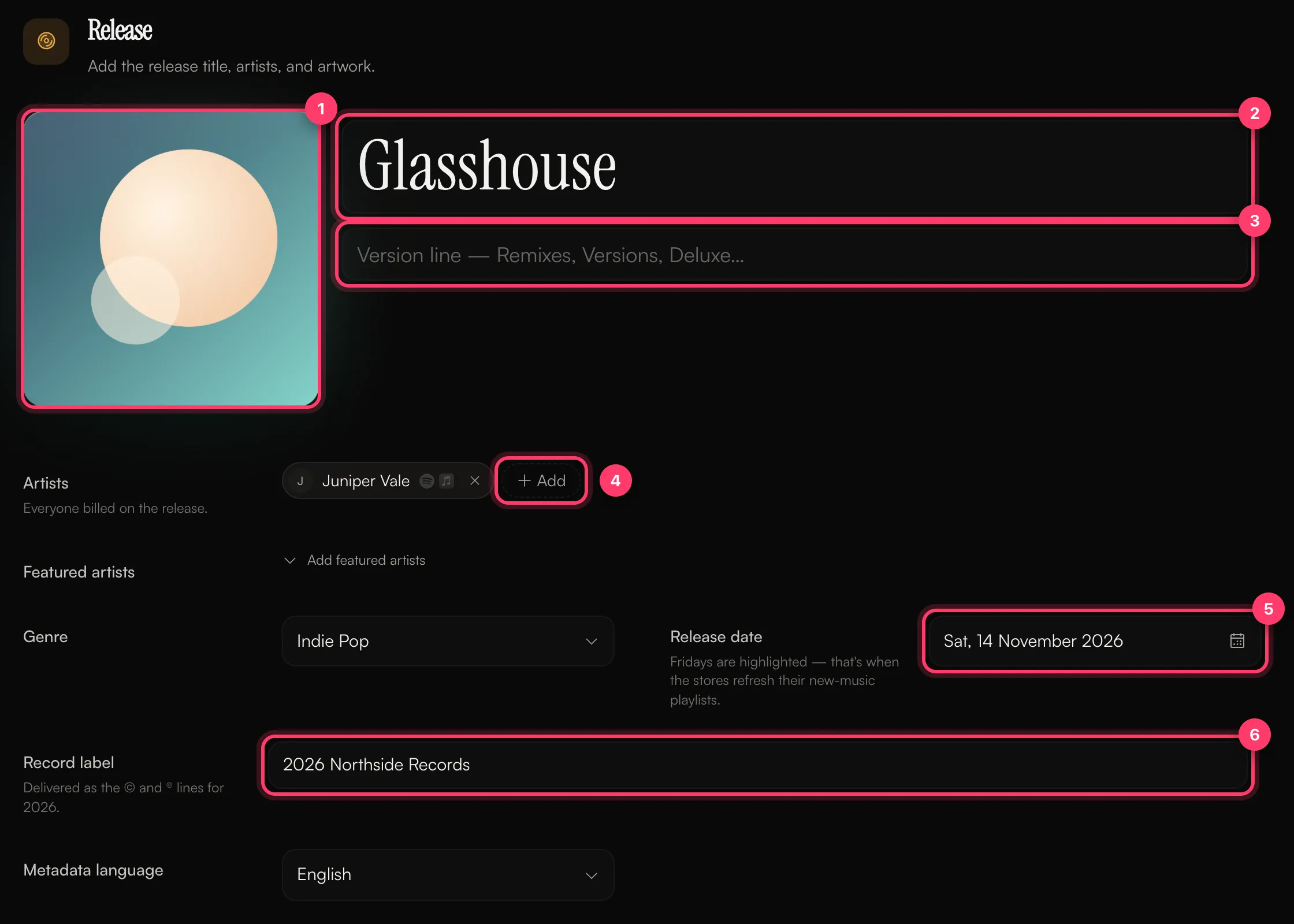
- Artwork: click or drop a square image of at least 1,000 × 1,000 pixels. See Artwork requirements.
- Title: the release title. On a one-track single it has to match the track title.
- Version line: only for things like "Remixes" or "Deluxe". Leave it empty otherwise.
- Artists: everyone billed on the release. Click Add to search for an artist or create a new one. Add featured artists is below.
- Release date: pick a date in the calendar. Fridays are highlighted.
- Record label: your label or artist name. It's used for both the © and ℗ lines, with the year taken from the release date.
Also pick the Genre and the Metadata language (the language your titles are written in).
2. Tracks
Upload your audio. Each WAV or FLAC file becomes a track, and the file name becomes the track title. Drag tracks to reorder them.
Click a track to open it and fill in:
- Title and Version (for example "Sped Up" or "Radio Edit").
- Artists and Featured artists.
- Explicit: Clean or Explicit.
- Previously released: choose New recording, or Previously released and enter the existing ISRC.
- Credits: at least one composer or lyricist, one producer and one performer.
The release type (single, EP or album) is set from the number of tracks. See Single, EP or album?
3. Review & submit
Check everything and make your choices about where the release goes.
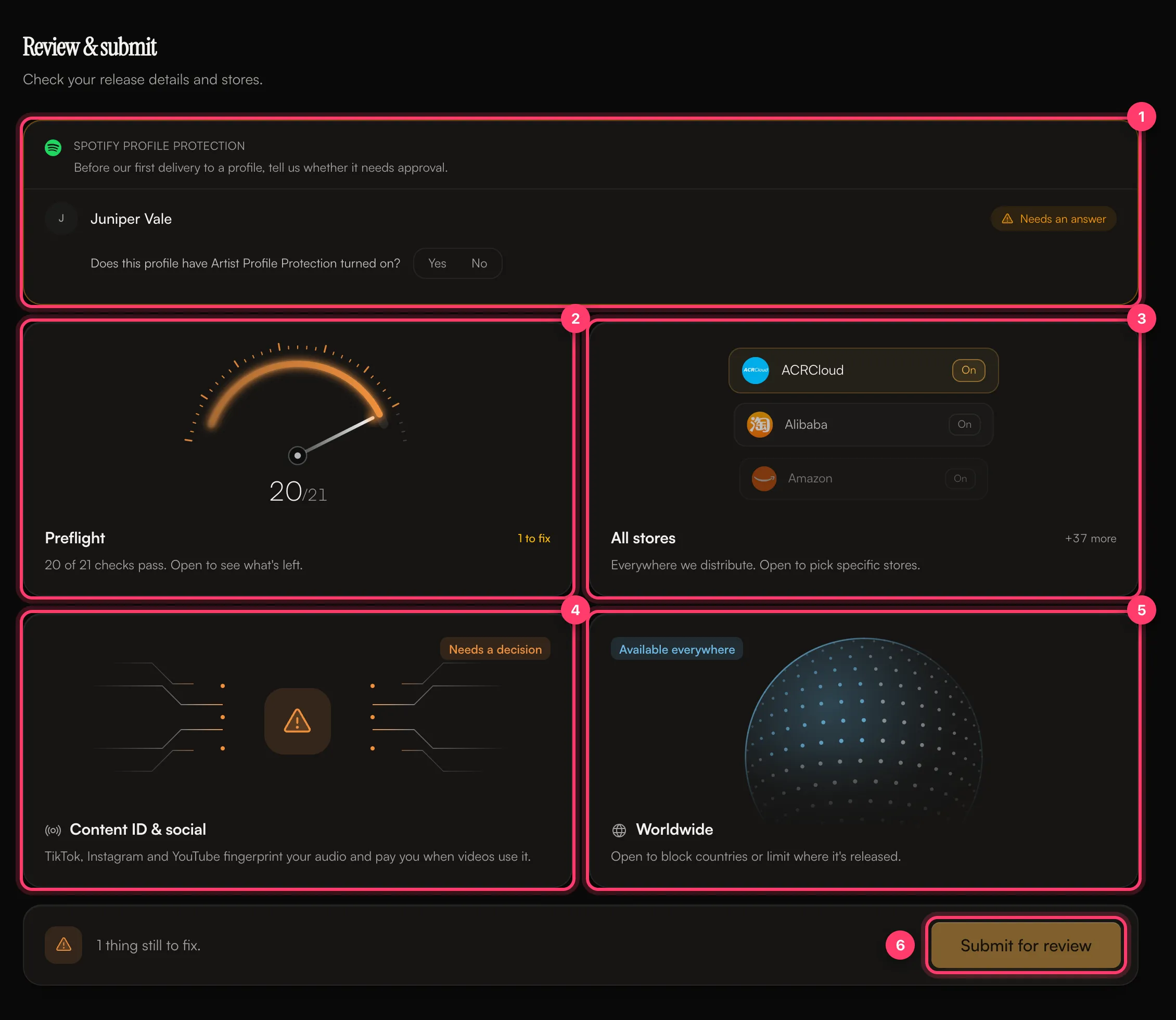
- Spotify profile protection: shown when we haven't delivered to an artist's Spotify profile before. Answer the question for each artist.
- Preflight: the list of checks. Open it to see what's left to fix.
- Stores: all stores by default. Open it to pick specific stores.
- Content ID & social: you must choose whether the release goes to TikTok, Instagram, Facebook, YouTube Content ID and SoundCloud.
- Territories: worldwide by default. Open it to block or limit countries.
- Submit for review: available once every check passes and you've made the Content ID decision.
After you submit, you'll see "Submitted for review" and we email you once it has been reviewed.
Saving
The top of the builder shows the save state: Saving, Saved, or Unsaved. If a change couldn't be saved you'll see "Change failed — reverted"; make the change again. If you try to leave while something is still saving, you'll be asked to stay on the page or leave anyway.
Once a release is submitted, its details are locked in the builder. If we send it back for changes, you can edit it again.
Common questions
Can I work on a release with my team?
Yes. Anyone on the account with the Admin or Member role can create and edit releases.
Can I build a release on my phone?
Not in the mobile apps. Creating and editing releases is done on the web.
Can I delete a draft?
Yes. Open the release and delete it. Only drafts and rejected releases can be deleted.
Related: Artwork requirements · Audio requirements · Add songwriter, producer and performer credits · Check and submit your release · Release statuses explained
Updated on: 23/10/2026
Thank you!