Read your analytics
Analytics in the sidebar shows how your music is doing across stores: streams, saves, videos using your sound, where listeners are, and what you've earned. Each release also has its own Analytics tab.
Pick a date range
Use the buttons at the top right: 7d, 30d, 90d or 12m. Under the page title you'll see the dates you're looking at and the last day the stores have reported ("reported through …").
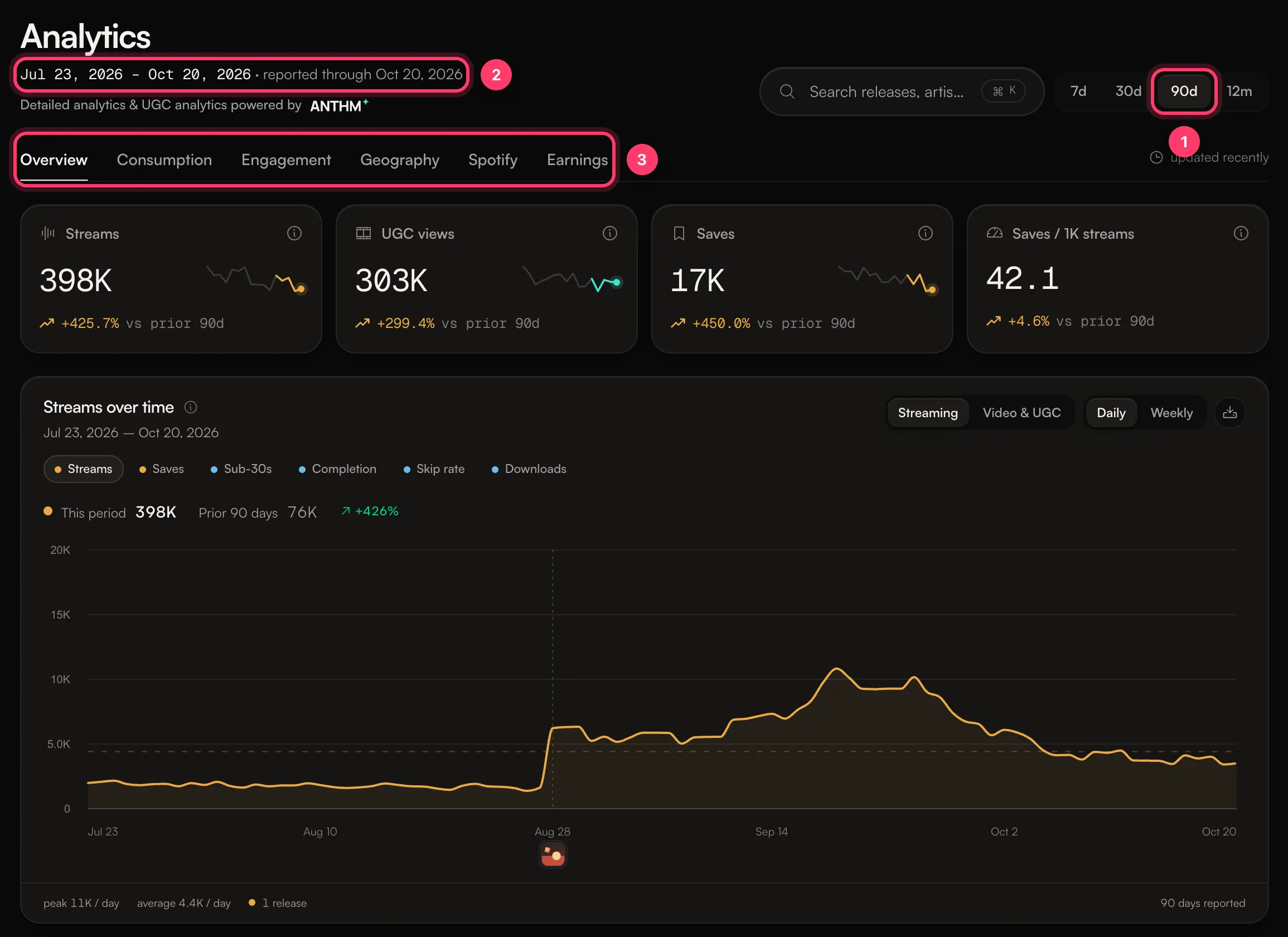
The tabs
Tab | What it shows |
|---|---|
Overview | Your headline numbers, streams over time, your top tracks and your smart link activity. |
Consumption | Top releases, artists, stores and countries, where plays started (Source of stream), how listeners found your tracks (Discovery type), and recent events. |
Engagement | How listeners engage: saves, completion, skips, playlist placements and, where reported, stream health. |
Geography | A map and list of your top countries and cities. |
Spotify | Spotify for Artists numbers. These are kept separate from store reports. See Spotify for Artists numbers in AMM Distro. |
Earnings | Money from your finalized royalty statements, by month, platform and track. |
The first four tabs use store reports. Spotify and Earnings have their own dates and are never added to the store numbers.
What the numbers mean
Hover the small i next to a number for its definition. The main ones:
- Streams: plays counted by the streaming platforms, after their own fraud filtering.
- UGC views: views of short-form videos that use your music, across TikTok, Reels and Shorts.
- Saves: adds to a listener's library or playlist.
- Saves / 1K streams: saves per thousand streams, so you can compare tracks of any size.
- Sub-30s: plays that stopped before 30 seconds, so they never became a paid stream.
- Completion and Skip rate: the share of plays that reached the end of the track, and the share a listener skipped out of.
Each headline number shows the change against the period before it, for example "+10.2% vs prior 30d".
Streams over time
Switch the chart between Streaming and Video & UGC, and between Daily and Weekly. Click the series names (Streams, Saves, Sub-30s and so on) to show or hide them. The download button saves the selected date range as a CSV file.
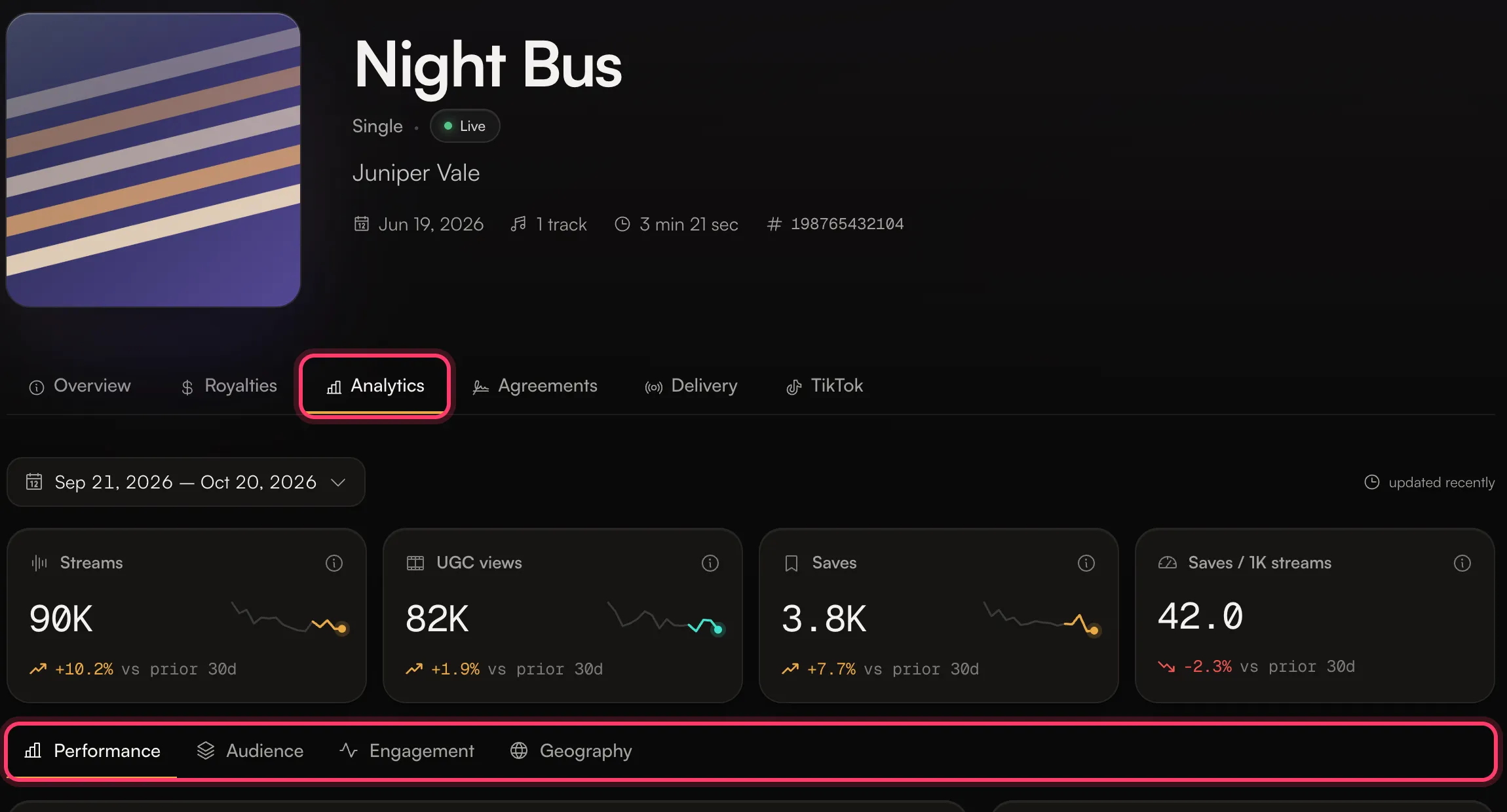
Analytics for one release
- Open the release from Releases.
- Click the Analytics tab. It appears once the release has been delivered.
- Pick a date range, then use Performance, Audience, Engagement and Geography.
Common questions
I see "No analytics data yet"
Numbers arrive once a release is live and the platforms send their first daily report. Check back a few days after release day.
Why are yesterday's streams missing?
Stores report a few days behind. The page shows the last reported day next to the date range.
Why don't my streams match my earnings?
Streams are daily and a few days behind. Earnings come from monthly statements, a month or two behind that. See Why don't my streams match my earnings?
Some store or country numbers have a note about being apportioned
Some stores only report totals for the whole catalog. When that happens, the page shows your share of those totals and says so under the list.
Related: Spotify for Artists numbers in AMM Distro · Why don't my streams match my earnings? · Smart links for your releases
Updated on: 23/10/2026
Thank you!