Collabs: work with creators directly
Collabs is for working with creators you already know or want to reach, outside the ANTHM marketplace. You write a brief, send each creator a personal link, approve their draft, then mark their post live and record that you've paid them. The creator doesn't need an ANTHM account.
Open Collabs under Audience in the left menu. Collabs is available on plans that include campaigns. It has three sections: Collabs, Roster and Outreach.
1. Write the brief
- Click New collab.
- Under The song, add a cover, the Collab name, Artist, Song and the Sound link (the TikTok or Instagram sound page creators should use).
- Write the Brief: what the video is about, the feeling, and anything they need to know before filming.
- Add Deliverables: how many posts, on which platform (TikTok, Instagram, YouTube or Other), and what to post.
- Under Guidelines, add Do and Don't points, Hashtags and Mentions. Press Enter after each one.
- Under Payment, set the default Rate (USD) and the Terms, for example "Paid by PayPal within 7 days of your post going live." You can set a different rate per creator when you invite them.
- Under Timeline, set the dates. Drafts due and Live posts due set each creator's deadlines.
- Optionally, set a Follow-up: one reminder email for creators who haven't answered after a number of days. It stops as soon as they accept or decline.
- Click Create collab.
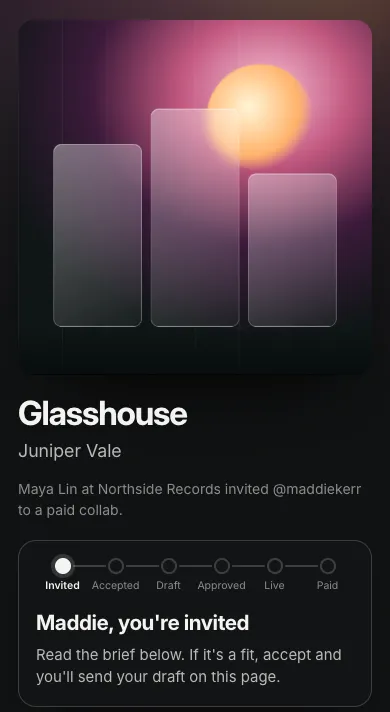
The preview on the right shows what a creator sees on their link at each stage. You can change the brief later with Edit brief; changes show on every creator's link straight away.
2. Invite creators
- Open the collab and click Invite creators.
- Pick creators from your roster, or add someone by hand with their name, handle, email and platform. People you add by hand are saved to your roster too.
- Optionally, enter a Rate. Leave it empty to use each creator's roster rate, or the collab's rate when they don't have one.
- Under First email, pick an outreach template and choose Send now or Schedule. Or choose Don't email. I'll send the links myself.
- Click Invite and send (or Invite and schedule, or Create links).
Each creator gets a personal link with the brief, their rate and the dates. Emails are sent from your name, and replies go to your email address. Creators with no email address, or who opted out of your emails, aren't emailed; copy their link from the board and send it yourself.
3. What the creator sees
The creator opens their link, reads the brief, and clicks Accept collab or Decline. After accepting, they send a draft link (a private video, Drive or Dropbox link) on the same page. Once you approve it, they post and send the live post link and the email address of their PayPal account so you can pay them.
4. Review and pay on the board
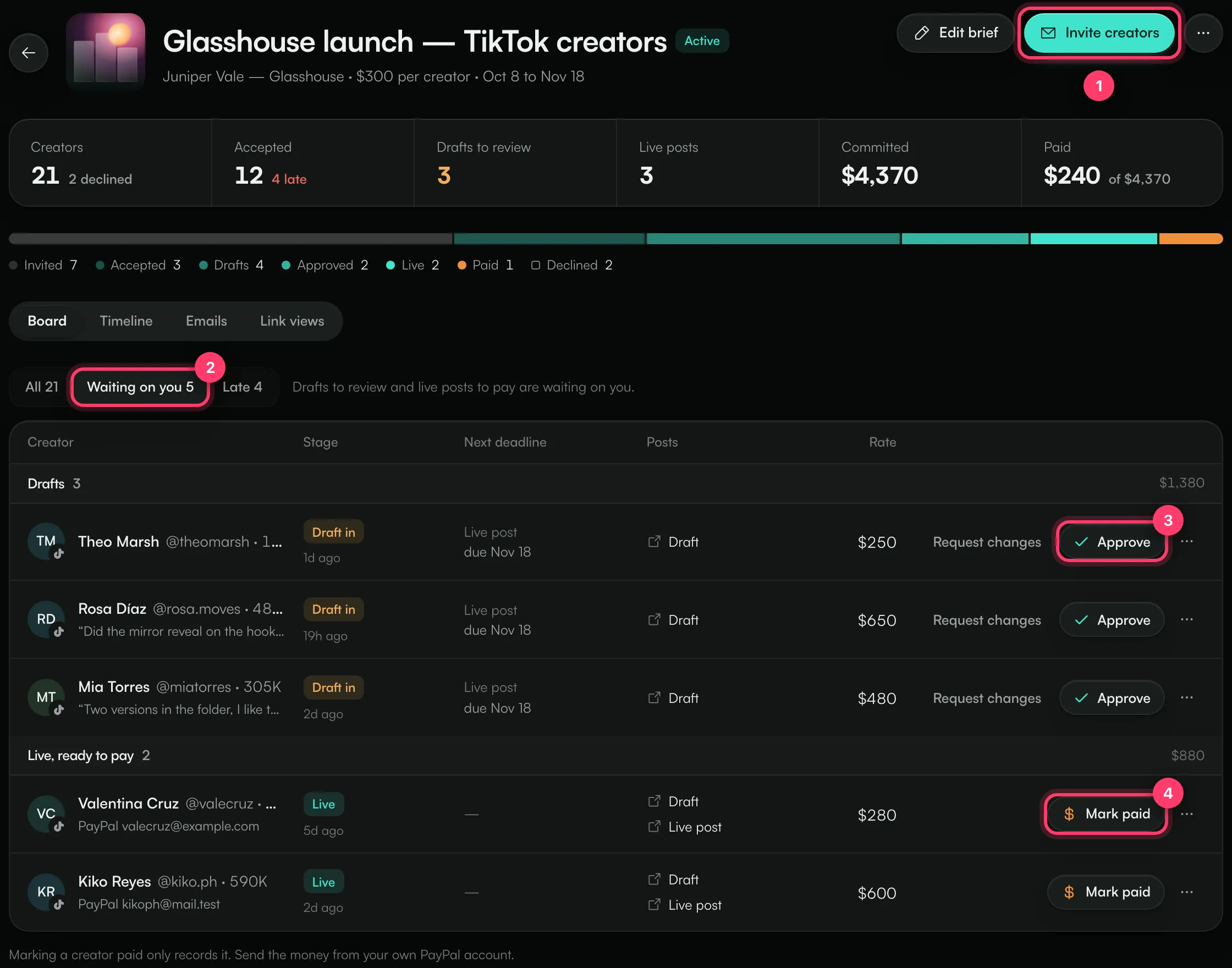
- Invite creators adds more people.
- Waiting on you shows drafts to review and live posts to pay. Late shows creators past a deadline.
- On a draft, click Approve, or Request changes and write what should change. The creator sees your notes on their link.
- When a post is live, send the money yourself, then click Mark paid.
Creators move through these stages: Invited, Opened link, Accepted, Draft in, Changes asked, Approved, Live, Paid or Declined. The numbers at the top show creators, accepted, drafts to review, live posts, and how much is Committed and Paid.
If a creator posts without sending a draft, click Mark live and paste the link. Use the … menu on a row to copy their link, change their rate, mark them accepted, reopen a declined invite or remove them from the collab.
The other tabs:
- Timeline: each creator's progress against the drafts-due and live-posts-due dates, with overdue creators flagged.
- Emails: every email sent or scheduled for this collab. You can cancel a scheduled one.
- Link views: how often the creator links were opened.
You also get a notification when a creator sends a draft or a live post.
Roster
Roster keeps the creators you work with or want to: handle, platform, email, country, followers, average views, rate per post, tags, notes and status (Prospect, Contacted, Worked with or Paused).
- Add creator adds one person.
- Import adds many at once: paste rows from a spreadsheet or upload a CSV file. Creators already in your roster are updated, not duplicated.
- Select creators to Invite to a collab, Add a tag, Set status or Remove.
Outreach templates
Outreach holds your email templates for inviting creators and following up. Click New template, enter a Template name, Subject and Message, and use Insert a variable to add each creator's details:
Variable | Fills in |
|---|---|
| The creator's first name |
| Their handle |
| The song and artist from the brief |
| Their rate |
| Their personal link |
| Your name |
Every email includes a link the creator can use to opt out of collab emails from you.
Close a collab
From the … menu, choose Close collab. Creators can still see their link but can't send anything, and scheduled emails are cancelled. You can Reopen collab later. Delete removes the collab and every creator link stops working.
Common questions
How is this different from a campaign?
In a campaign, creators claim your brief on the ANTHM marketplace and are paid through ANTHM when their video is approved. In Collabs, you invite specific creators and pay them yourself.
Can a creator change their PayPal email or post link?
Yes. After sending their live post, they can click Change the post link or PayPal email on their link page.
Need help?
Send us a message from the chat on this page, or email team@ammdistro.com.
Related: Review creator submissions · Fund and publish a campaign · Brief creators with Ignite
Updated on: 23/10/2026
Thank you!