Fund and publish a campaign
A creator campaign opens to creators only after it's fully funded. You pay the campaign's full cost up front, by card or with account credit, then click Publish campaign. Money that the campaign doesn't spend comes back to you as account credit when it closes.
Your campaigns are on the Campaigns page. In the left menu, open All apps and choose Campaigns. Campaigns are available on plans that include them. If you see "Campaigns aren't on your plan", contact us to switch them on.
Find a campaign that needs funding
When your ANTHM manager has prepared a campaign for you, it appears on Campaigns as a Draft with a Needs Funding label and the amount left to fund.
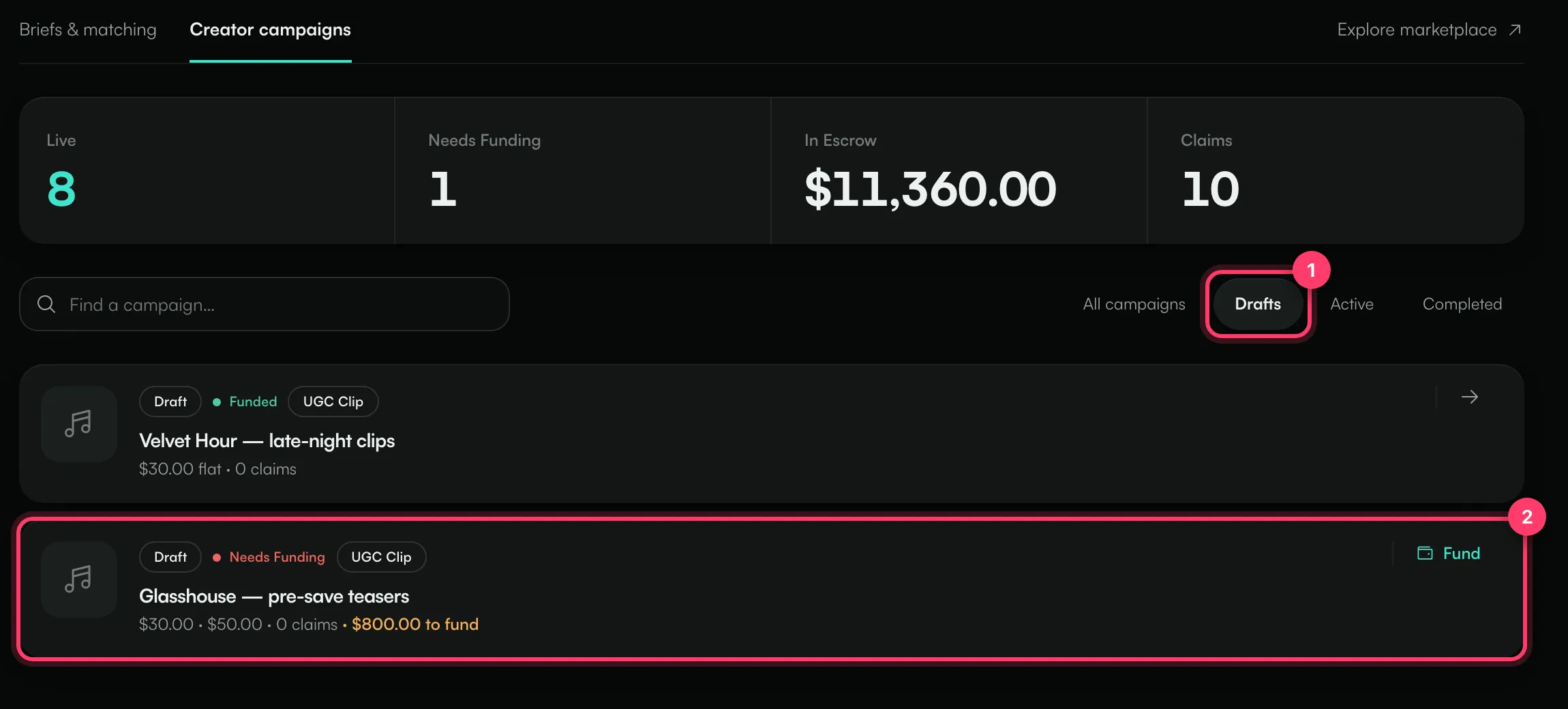
- Click Drafts to see campaigns that aren't live yet.
- Click the campaign. Rows that still need money show Fund on the right.
The numbers at the top of the page are:
Number | What it means |
|---|---|
Live | Campaigns open to creators now. |
Needs Funding | Campaigns that aren't fully funded yet. |
In Escrow | Money you've paid into your campaigns. |
Claims | Creators who have claimed your campaigns, across all of them. |
How much a campaign costs
The Funding section shows what the campaign needs before it can go live. ANTHM reserves the most the campaign could cost: every slot filled at the highest pay rate, plus any view bonuses. That way a creator who does the work is always paid.
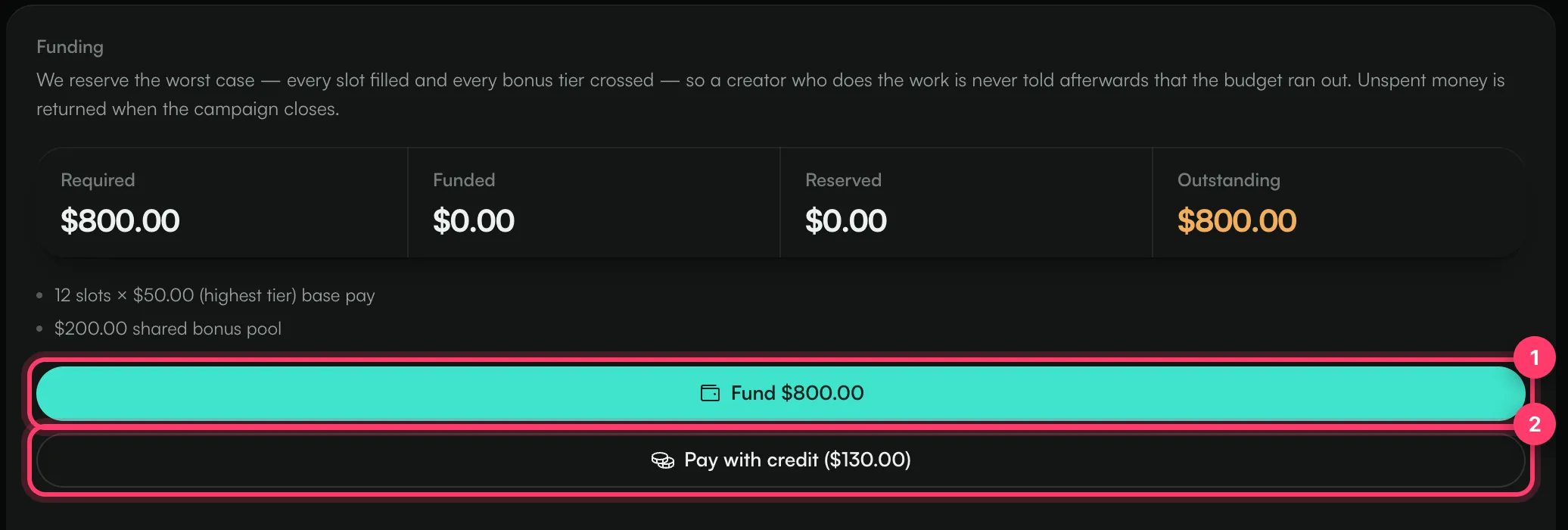
- Required: the full amount the campaign needs.
- Funded: what you've paid so far.
- Reserved: money set aside for creators whose work is underway.
- Outstanding: what's left to pay. Once the campaign is fully funded, this becomes Available, the money still free for new work.
The lines under the numbers show how the total was worked out, for example "12 slots × $50.00 (highest tier) base pay" and "$200.00 shared bonus pool".
Pay for the campaign
- Click Fund followed by the amount (for example Fund $800.00). A secure checkout page opens.
- Check the amount and pay by card.
- You're taken back to the campaign. The page confirms your payment, which usually takes a few seconds.
The checkout lists the campaign funding and an ANTHM service fee as separate lines, so you can see both before you pay. The service fee isn't part of the campaign budget and isn't spent on creators.
Pay with account credit
If you have account credit, a second button shows how much of it you can use, for example Pay with credit ($130.00).
- If your credit covers the whole amount, you'll see "Covers the whole balance — no card needed." The campaign is funded straight away.
- If it covers part of it, the button tells you how much credit is used and how much is left to pay by card. The credit is used first, and the checkout only charges the rest.
Publish the campaign
When the campaign is fully funded, the Funding section shows "Fully funded" with the amount held, and the publish button turns on.
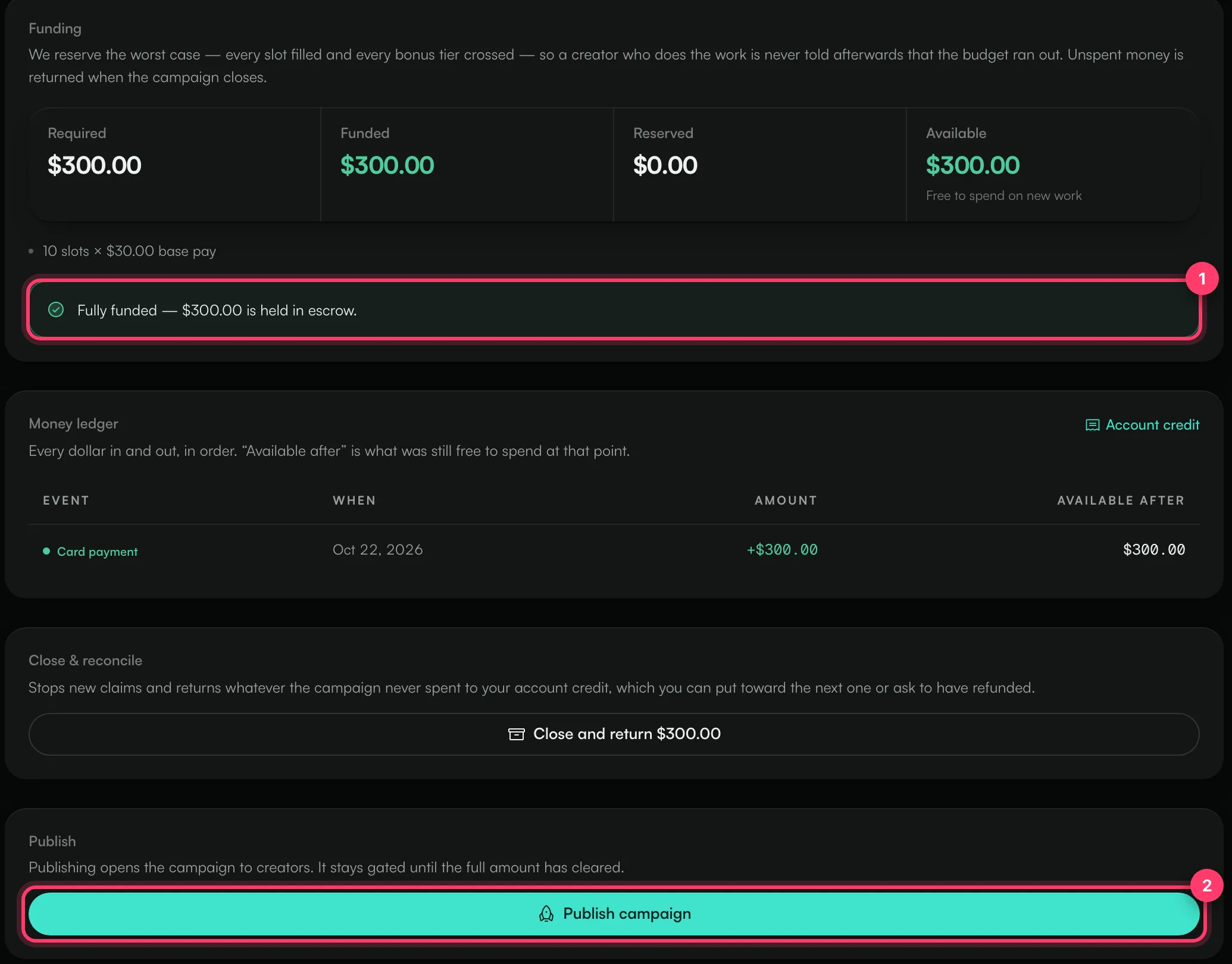
- Check the campaign details at the top of the page.
- Click Publish campaign.
You'll see "Campaign is live — creators can claim it now". Until the campaign is fully funded, the button reads Fund it first and can't be clicked.
Once the campaign is live, Creator view at the top of the page shows the campaign as creators see it.
Common questions
Who on my team can fund a campaign?
Team members with the admin or member role. Read-only members can't pay for campaigns.
When does a creator get paid?
When a creator's claim is accepted, their pay is reserved from the campaign. When their video is approved, that money is paid to them. Only approved videos are paid. See "Review creator submissions".
What happens to money the campaign doesn't spend?
Close the campaign and the unspent amount goes to your account credit. You can use it on your next campaign or ask for it back on your card. See "Account credit and refunds".
I see "Set a number of slots before funding."
The campaign has no limit on how many creators can join, so there's no fixed amount to fund. Contact us and we'll set a slot count.
I see "We could not resolve the required TikTok sound for the bonus."
View bonuses are only paid on videos that use the campaign's TikTok sound, and the sound link couldn't be read. Contact us to check the sound link.
Need help with a payment?
Send us a message from the chat on this page, or email team@ammdistro.com.
Related: Account credit and refunds · Review creator submissions · Brief creators with Ignite · Billing and your subscription
Updated on: 23/10/2026
Thank you!