Brief creators with Ignite
Ignite is where you write a brief for a creator campaign: the song, the moments you want used, the budget and the direction. You submit it, the ANTHM team reviews it, matches it with creators and agencies, and launches it to them.
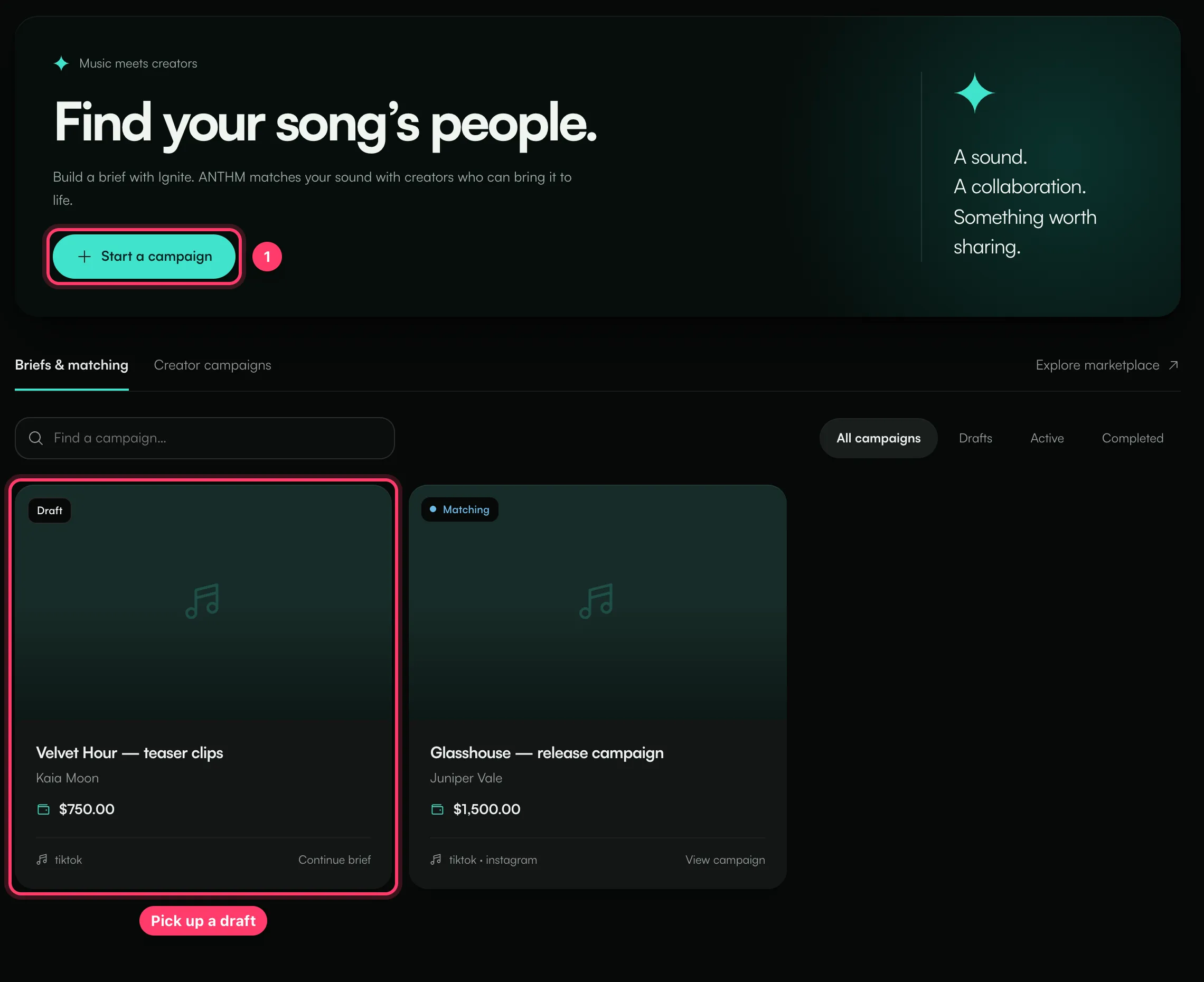
In the left menu, open All apps and choose Ignite. Click Start a campaign to write a new brief. Ignite is available on plans that include it.
Write a brief
The brief has seven steps. The left column shows where you are, and your brief is saved each time you continue.
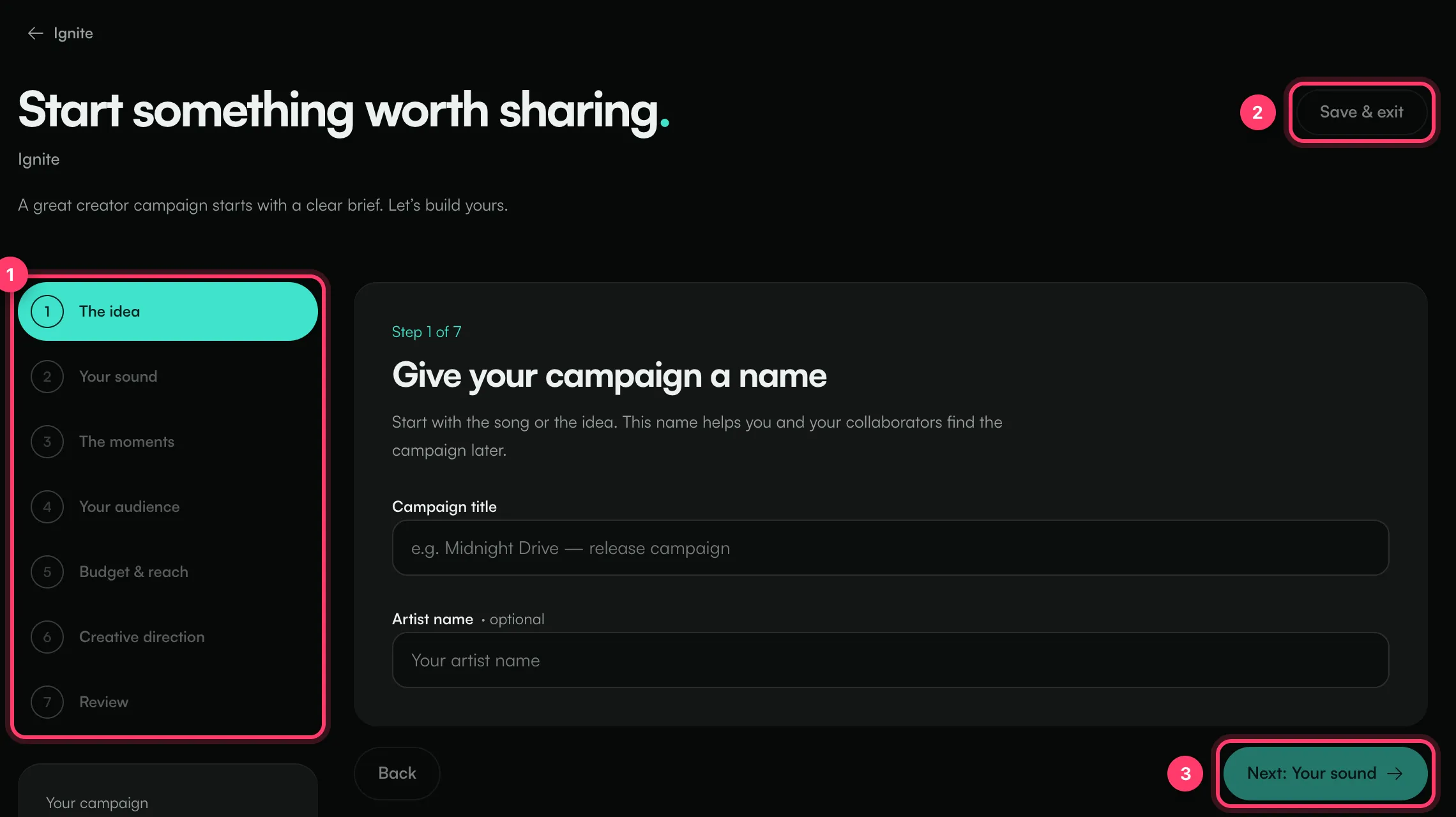
- The idea. Enter a Campaign title (for example "Midnight Drive — release campaign") and, optionally, the Artist name.
- Your sound. Add the song creators will use. Choose Upload file and drop in an audio file (WAV, MP3, FLAC or AIFF), or choose Paste TikTok, paste a TikTok video or sound link and click Scan. You can also add Cover art (optional); it's used on the campaign listing once it launches.
- The moments. Pick up to five clips from the song by selecting them on the waveform. Mark your favourite as the primary clip so creators know where to start.
- Your audience. Choose the genre that best describes the song. If it isn't listed, pick Other and type it in.
- Budget & reach. Enter the Campaign budget (USD) or tap a suggested amount, and choose the Platforms: TikTok, Instagram, YouTube, Snapchat or X / Twitter. Open Fine-tune your brief to add Regions, Required hashtags and Reference links (all optional, separated by commas).
- Creative direction. Choose ANTHM Team to let the ANTHM team shape the direction, or You specify and describe the vibe, references, do's and don'ts.
- Review. Check every detail. Click Edit next to a row to go back to that step. When it's right, click Submit for review.
You'll see "Submitted for review".
If something is missing
The app stops you and says what to fix:
Message | What to do |
|---|---|
Give your campaign a title | Fill in Campaign title on step 1. |
Upload a song first / Scan a TikTok sound before continuing | Add the song on step 2. |
Add at least one clip | Pick at least one moment on step 3. |
Pick a genre | Choose a genre on step 4. |
Enter a positive budget | Enter a budget above zero on step 5. |
Pick at least one platform | Choose a platform on step 5. |
Add your creative direction, or let ANTHM choose | Write your direction or switch to ANTHM Team on step 6. |
On the review step, Finish this step takes you straight to the step that needs attention.
If you see "This budget exceeds your plan's cap" or "You've hit a plan limit", your plan limits the budget or the number of briefs you can submit. Contact us to change your plan.
Drafts
Click Save & exit at any point. You'll see "Draft saved. Pick it up from Ignite whenever you're ready." Drafts show on the Ignite page with a Draft label; click Continue brief to carry on.
To delete a draft, open it and click Delete. This can't be undone.
What happens after you submit
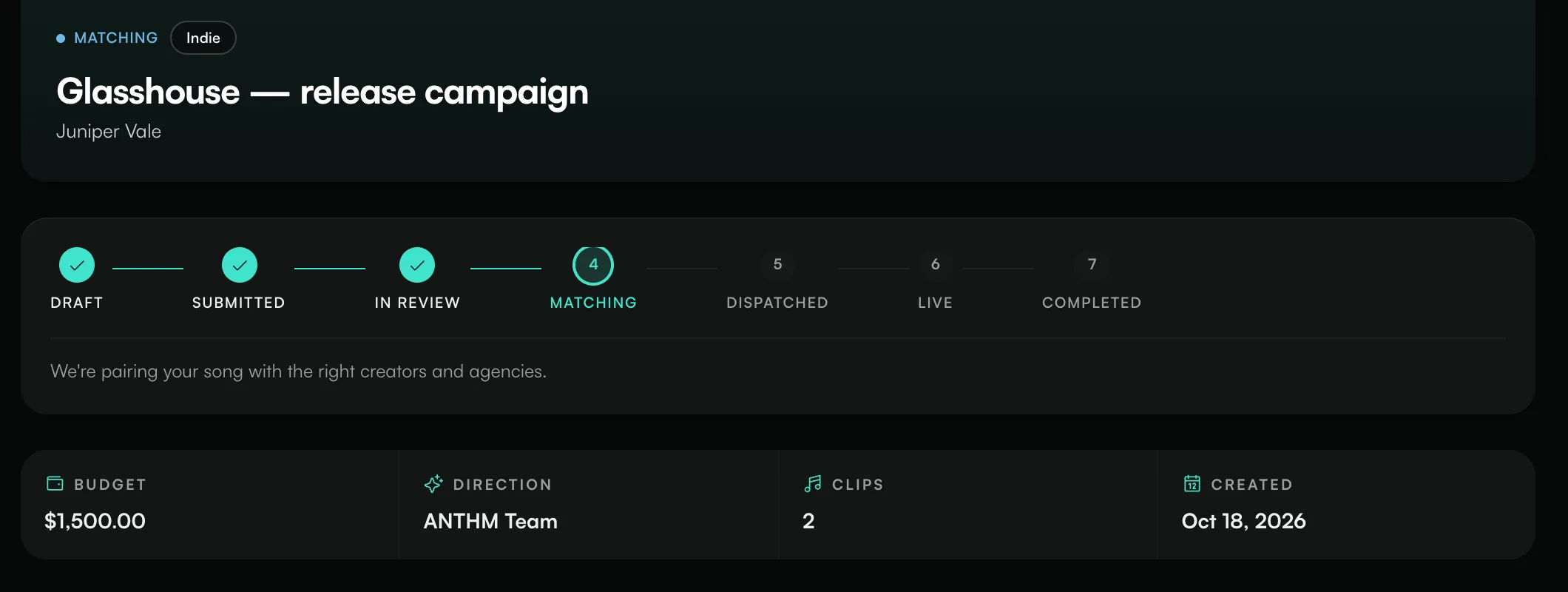
Open the campaign from the Ignite page to follow it. A progress bar shows the status:
Status | What it means |
|---|---|
Submitted | ANTHM is reviewing your brief. You'll be notified when matching starts. |
In Review | The ANTHM team is going through the brief. |
Matching | ANTHM is pairing your song with creators and agencies. |
Dispatched | Matched creators and agencies have been invited. |
Live | The campaign is open to the invited creators. |
Completed | The campaign has finished. |
Rejected | The brief wasn't accepted. Any note from the team appears under Review note. Click Revise brief to change it and submit again. |
Cancelled | The campaign was stopped. |
From Matching onwards, Matched Creators & Agencies shows how many are Suggested, Invited, Accepted and Declined.
When the campaign goes live, it becomes a campaign listing that only the matched creators and agencies can claim. Click View the live marketplace listing to see it. You can follow the campaign's videos from the release's project; see "Review creator submissions".
Common questions
Am I charged when I submit a brief?
No. Submitting a brief doesn't take a payment in the app. The ANTHM team arranges payment of the campaign budget with you directly.
Can I change a brief after submitting it?
Not while it's being reviewed. If the brief is rejected, click Revise brief. For other changes, contact us.
Questions about a brief?
Send us a message from the chat on this page, or email team@ammdistro.com.
Related: Fund and publish a campaign · Review creator submissions · Projects: one place for each release
Updated on: 23/10/2026
Thank you!