Email your fans
Email lets you write to the fans who signed up on your drops and link in bio pages. Send now or schedule it for later, then see who opened it and what they clicked. Only fans who are subscribed get it.
Open Email under Audience in the left menu. Email is available on plans that include the marketing tools.
The page lists your emails with their status, audience, when they went out, and how many people they were sent to, opened and clicked. The numbers at the top show your Subscribed fans and your Emails sent, Open rate and Click rate for the last 30 days.
Write an email
- Click New email.
- Click the name at the top to rename it. Only you and your team see the name.
- Fill in Details:
- Subject. Type
{{first_name}}to add each fan's first name. - Preview text, shown after the subject in most inboxes.
- From name, the name fans see the email from. It starts as your account name.
- Replies go to, the address fans' replies are sent to. It starts as your sign-in email.
- Subject. Type
- Choose the Audience (see below).
- Build the email under Content (see below).
Your changes save automatically. Preview on the right shows the email as fans will get it; switch between Desktop and Mobile.
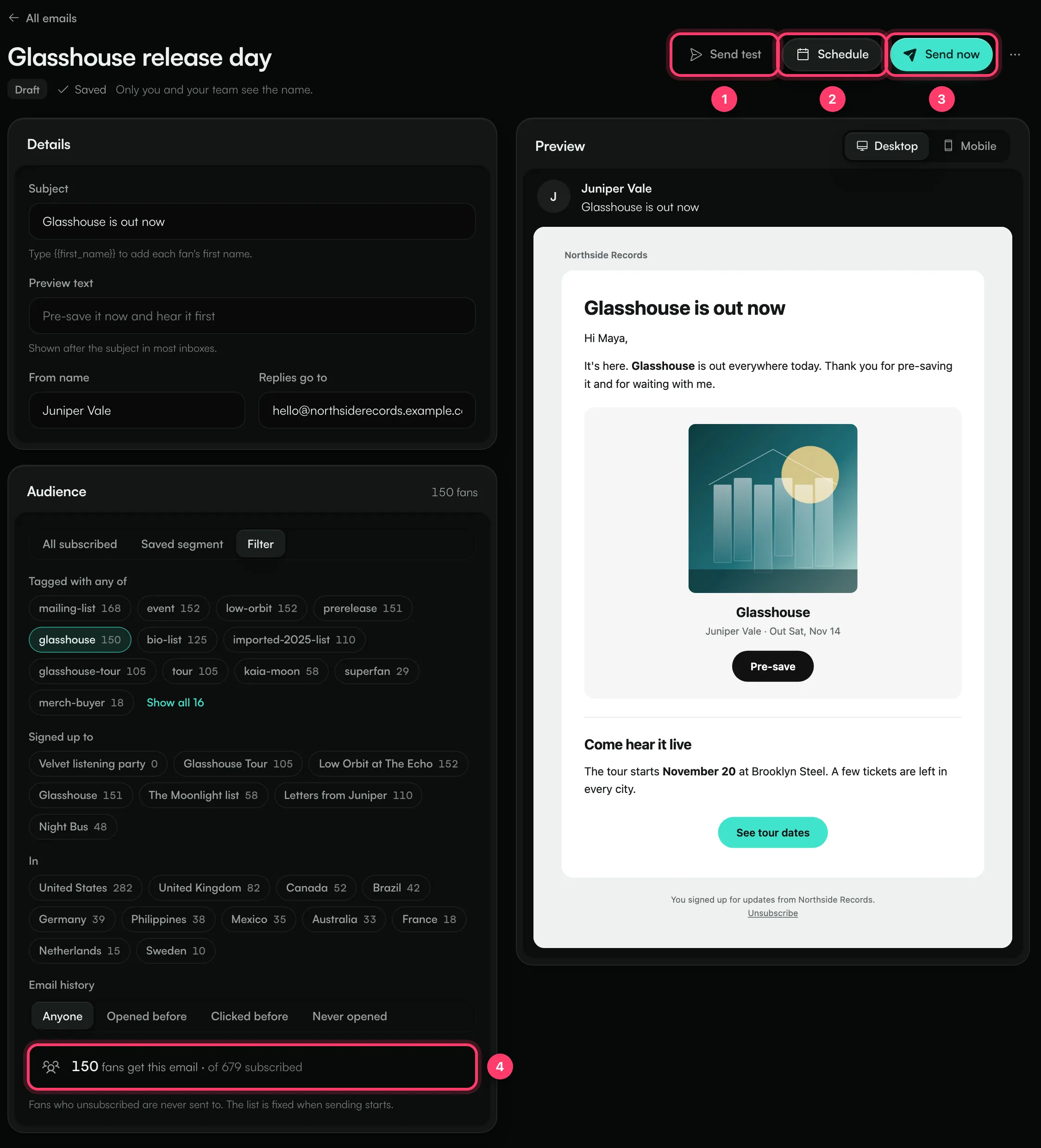
- Send test sends the email to your own sign-in address, with "[Test]" in front of the subject.
- Schedule sends it at a time you choose.
- Send now sends it straight away.
- The number of fans who will get this email.
Content blocks
Click a block under Add a block: Heading, Text, Image, Button, Release, Drop, Divider or Spacer. Use the arrows or drag a block to reorder it.
- Text: select words and press Bold, Italic or Link. First name adds each fan's first name (or "there" when it's unknown). A blank line starts a new paragraph.
- Image: JPG, PNG, GIF or WebP, up to 15 MB, with an optional link.
- Button: a label, a link and a colour.
- Release: a card with the artwork and a button from one of your smart links.
- Drop: a card linking to one of your drops.
Every email ends with "You signed up for updates from [your account name]." and an Unsubscribe link. You can't remove it.
Choose who gets it
Under Audience, choose:
- All subscribed: every subscribed fan.
- Saved segment: one of the segments you saved in Fans.
- Filter: fans Tagged with any of certain tags, who Signed up to certain drops, who are In certain countries, and by Email history (Opened before, Clicked before or Never opened).
The count under the audience shows how many fans will get the email, out of all your subscribed fans. Fans who unsubscribed are never sent to. The list is fixed when sending starts.
Send or schedule
Send now
Click Send now, check the subject, sender and reply address, then click Send now again. Once it has gone out, it can't be changed.
Schedule
- Click Schedule.
- Pick the Date, Time and Time zone.
- Click Schedule.
The time must be at least a minute from now and within the next year. Changes you make to a scheduled email save and go out at the scheduled time. To stop it, click Cancel schedule; the email becomes a draft again.
If you see "Add a subject, a from name and some content to send this email." or "Nobody in this audience is subscribed.", fix that before sending.
While it sends
Emails go out in batches a few seconds apart, so a large list takes a little while. You can leave the page; sending carries on. The page shows how many were sent, failed or skipped. Stop sending stops the rest: fans who already got the email keep it.
Read the report
Open a sent email to see its report.
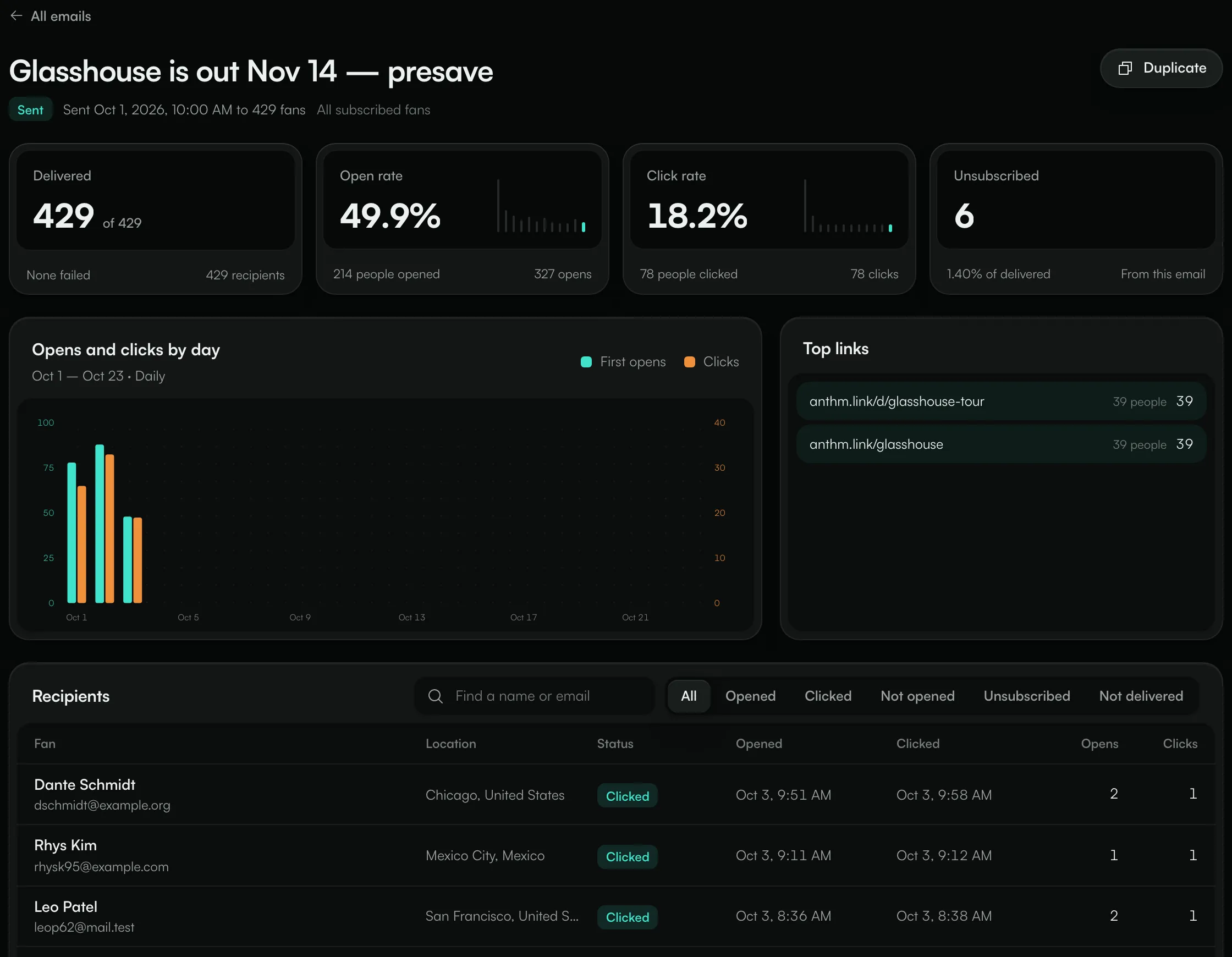
- Delivered: how many emails arrived, with any that failed or were skipped.
- Open rate and Click rate: the share of delivered emails that were opened or clicked, with the number of people and the total opens and clicks.
- Unsubscribed: fans who unsubscribed from this email.
- Opens and clicks by day and Top links.
- Recipients: each fan with their status and when they opened and clicked. Filter by Opened, Clicked, Not opened, Unsubscribed or Not delivered.
Click Duplicate to start a new email from this one.
Common questions
A fan says they didn't get my email.
Check their status in Fans. Fans who are unsubscribed, bounced or marked as spam aren't sent to. If they're subscribed, ask them to check their spam folder.
Can I send to people who aren't on my fan list?
No. Emails only go to subscribed fans on your list. Add people through a drop, a link in bio signup, Add fan or an import first.
Can I delete a sent email?
No. Sent emails stay on your list with their reports. To delete a draft, use the … menu on it and choose Delete draft.
Need help?
Send us a message from the chat on this page, or email team@ammdistro.com.
Related: Fans: your fan list · Drops: collect fans for a release, show or tour · Link in bio
Updated on: 23/10/2026
Thank you!