Fans: your fan list
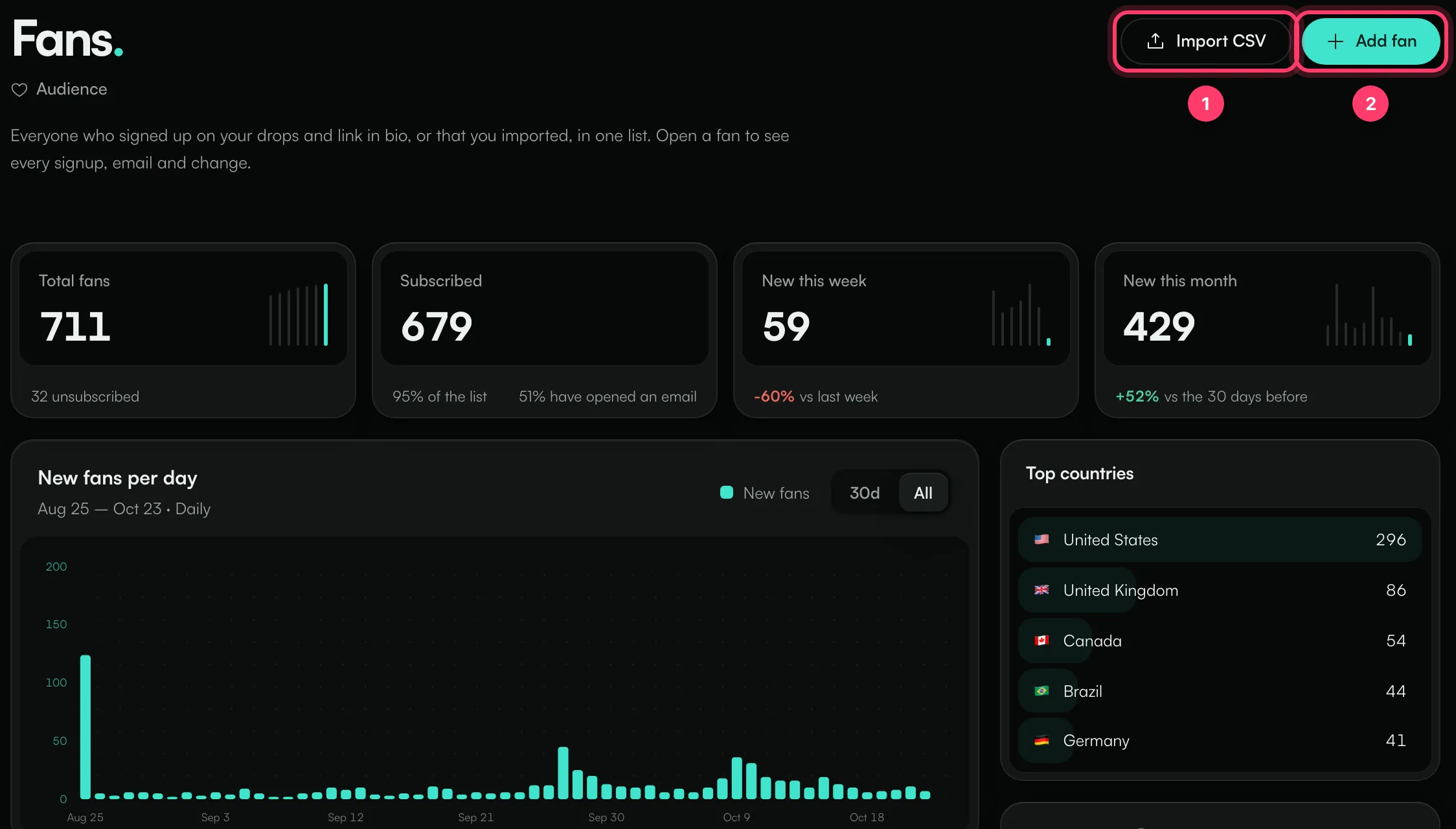
Fans is one list of everyone who signed up on your drops and link in bio pages, plus anyone you imported or added yourself. Open a fan to see every signup, email and change. This is the list you send emails to.
Open Fans under Audience in the left menu. Fans is available on plans that include the marketing tools.
How fans get on your list
- They sign up on one of your drops. They get that drop's tags.
- They sign up with an Email signup block on your link in bio page. They tick a box agreeing to hear from you, and get the block's tag.
- You import them from a CSV file (Import CSV).
- You add them by hand (Add fan).
Each email address is one fan. When the same person signs up again, their existing record is updated and their signup count goes up.
The overview
- Total fans, with how many are unsubscribed.
- Subscribed: fans who can get your emails, and how many of your fans have opened an email.
- New this week and New this month, compared with the period before.
- New fans per day, Top countries and Top sources (the page or file each fan first joined from). Click a country or source to filter the list.
Find fans
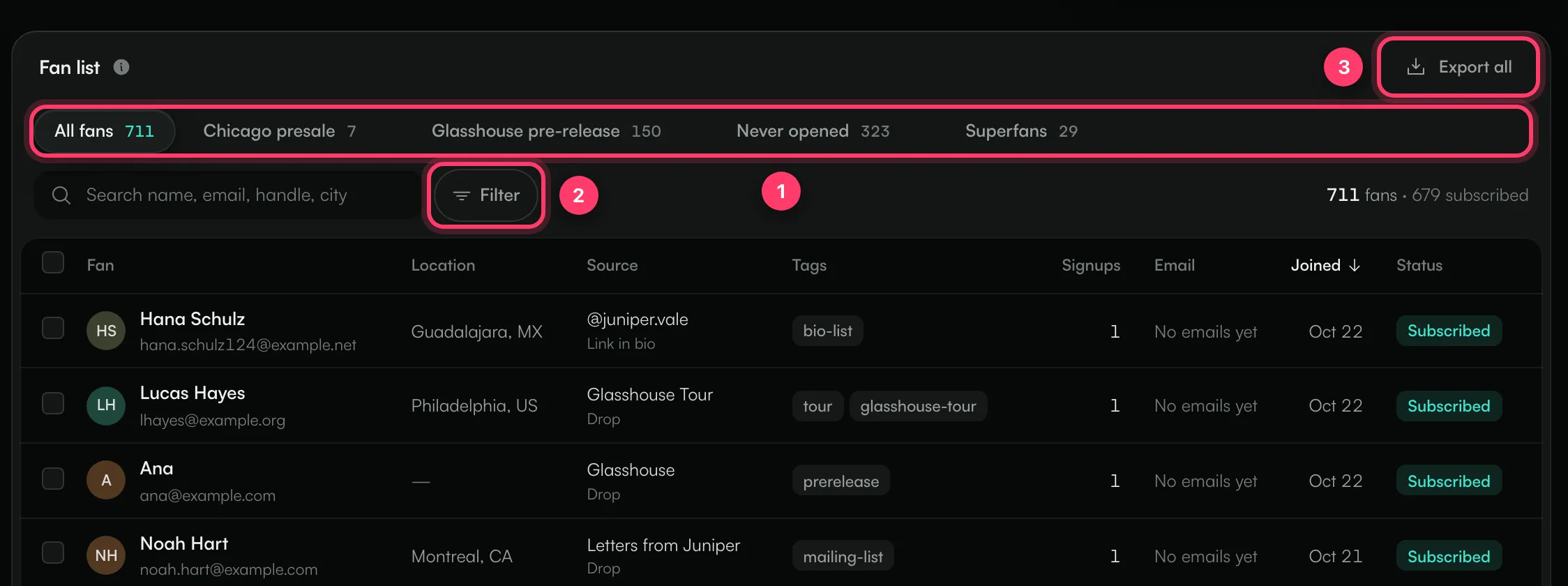
- Segments: All fans and your saved segments, each with a live count.
- Filter: add filters for Status, Tags, Country, Source, Signed up to (a drop), Joined and Email activity (opened, clicked or never opened). The search box finds names, emails, handles and cities.
- Export all downloads the list as a CSV file. When a filter is on, it reads Export filtered and downloads only the fans that match.
Save a segment
After you set a filter or search, click Save as segment, give it a Name and click Save segment. A segment keeps the filters, so its count updates as fans join, and you can send email to it. Use the … menu on a segment to rename or delete it. Deleting a segment doesn't remove the fans in it, but scheduled emails sent to that segment will no longer have an audience.
Open a fan
Click a fan to see their profile.
- Journey: everything that happened, newest first: signups, emails sent, opened and clicked, rewards unlocked, tags and unsubscribes.
- Details: edit their Name, Handle, City, Country (two-letter code, like US or GB), Tags and Notes. Notes are only seen by your team. Click Save changes. The email address can't be changed.
- Drops and emails: the drops they joined and the emails they got.
From the fan's profile you can also Unsubscribe them or Delete them with their history.
Add a fan
- Click Add fan.
- Enter their Email, plus any other details.
- Tick This person agreed to hear from [your account].
- Click Add fan.
Only add people who asked to hear from you, in person or by message. If the email is already on your list, you'll see "This email is already on your list." with a link to their profile.
Import a CSV file
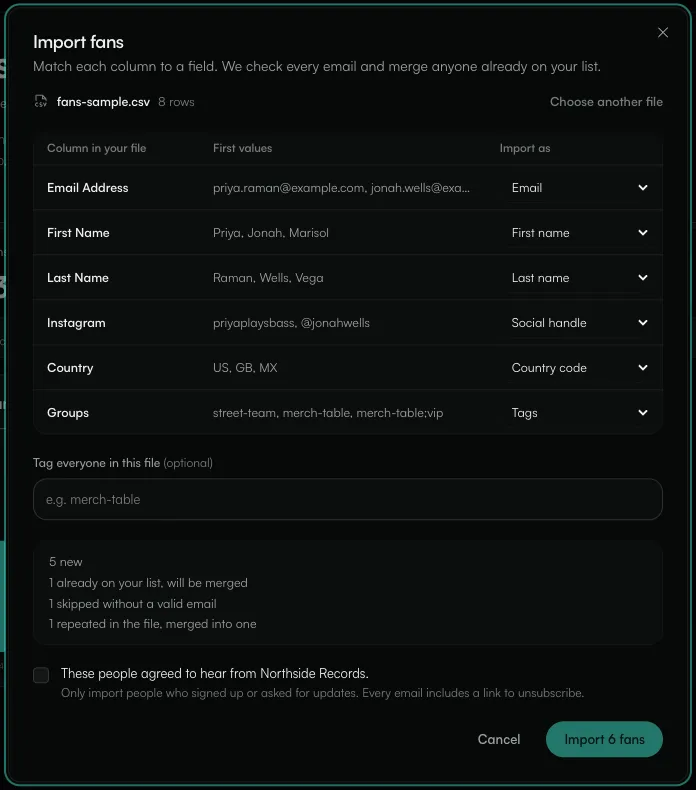
- Click Import CSV and choose a .csv or .tsv file. The first line must be the column names, and the file needs at least an email column. Up to 100,000 rows and 20 MB per file.
- Match each column to a field: Email, Name, First name, Last name, Social handle, Country code or Tags. Choose Don't import for columns you don't need.
- Optionally, add a tag to Tag everyone in this file.
- Check the summary: how many fans are new, how many are already on your list and will be merged, and how many rows were skipped.
- Tick These people agreed to hear from [your account].
- Click Import.
Importing never overwrites details you already have. It only fills in blanks and adds tags. People who unsubscribed earlier stay unsubscribed.
Change many fans at once
Tick the box next to each fan, or the box at the top to select the page. To select everyone who matches the current filter, click Select all [number] that match. Then choose:
- Tag or Remove tag.
- Export CSV.
- Unsubscribe: they won't get your emails.
- Delete: removes them and their history. Their signups disappear from your drop stats. This can't be undone.
Statuses and unsubscribes
Status | What it means |
|---|---|
Subscribed | Gets your emails. |
Unsubscribed | Asked not to get your emails, or was unsubscribed by your team. |
Bounced | Emails to this address can't be delivered. |
Marked as spam | The fan reported your email as spam. |
Every email you send has an unsubscribe link. When a fan uses it, they're unsubscribed straight away. Only the fan can subscribe again, from the link in any email. Your team can unsubscribe a fan but can't resubscribe them.
Common questions
Can I upload a list I bought or collected somewhere else?
Only import people who signed up or asked for updates from you. The import asks you to confirm this every time.
Why didn't a fan who signed up again start getting my emails?
Signing up again on a drop or link in bio page doesn't resubscribe someone who unsubscribed earlier. They need to use Subscribe again from the unsubscribe link in one of your emails.
Need help?
Send us a message from the chat on this page, or email team@ammdistro.com.
Related: Email your fans · Drops: collect fans for a release, show or tour · Link in bio
Updated on: 23/10/2026
Thank you!