Move your catalog from another distributor
You can move releases you've already put out with another distributor into AMM Distro. Your releases keep their ISRCs, so stream counts and playlist placements stay linked to the same recordings. Your manager can do the transfer for you, or you can use the Catalog Transfer tool yourself.
Before you start
- Have the Spotify link to the album, single or artist you want to move.
- Have the final audio files (WAV or FLAC) for every track. The tool brings across the details, not the audio.
- Don't remove anything from your old distributor yet. Talk to your manager or to us first about when to do that.
Move one release
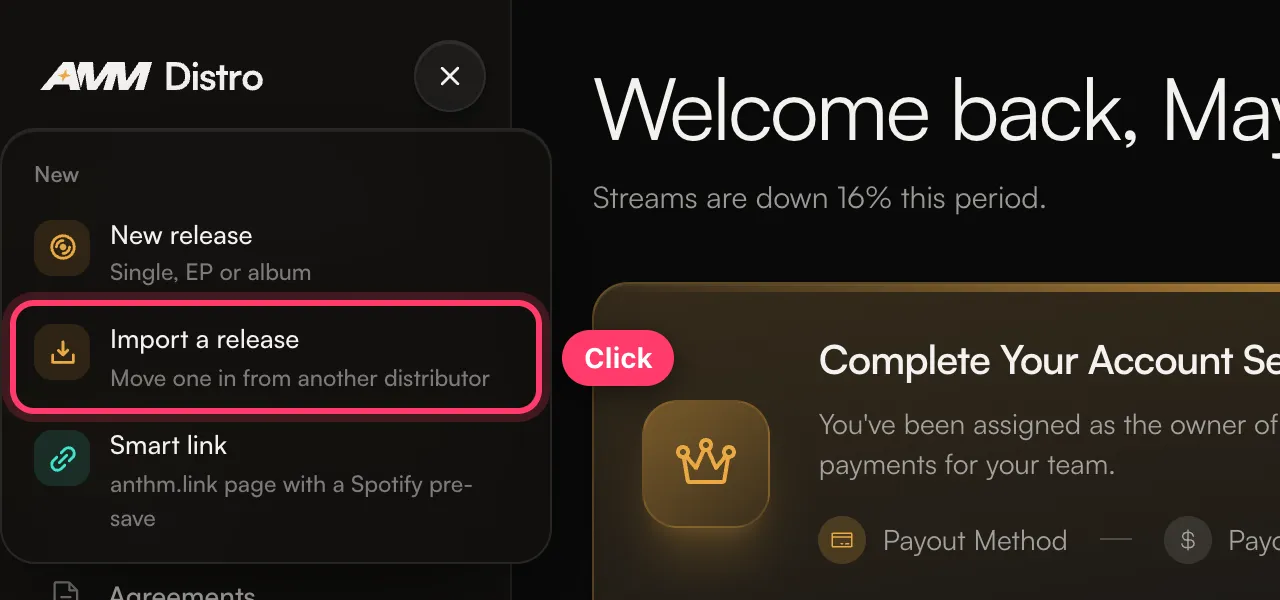
- Click + at the top of the left menu and choose Import a release. (You can also open Tools → Catalog Transfer.)
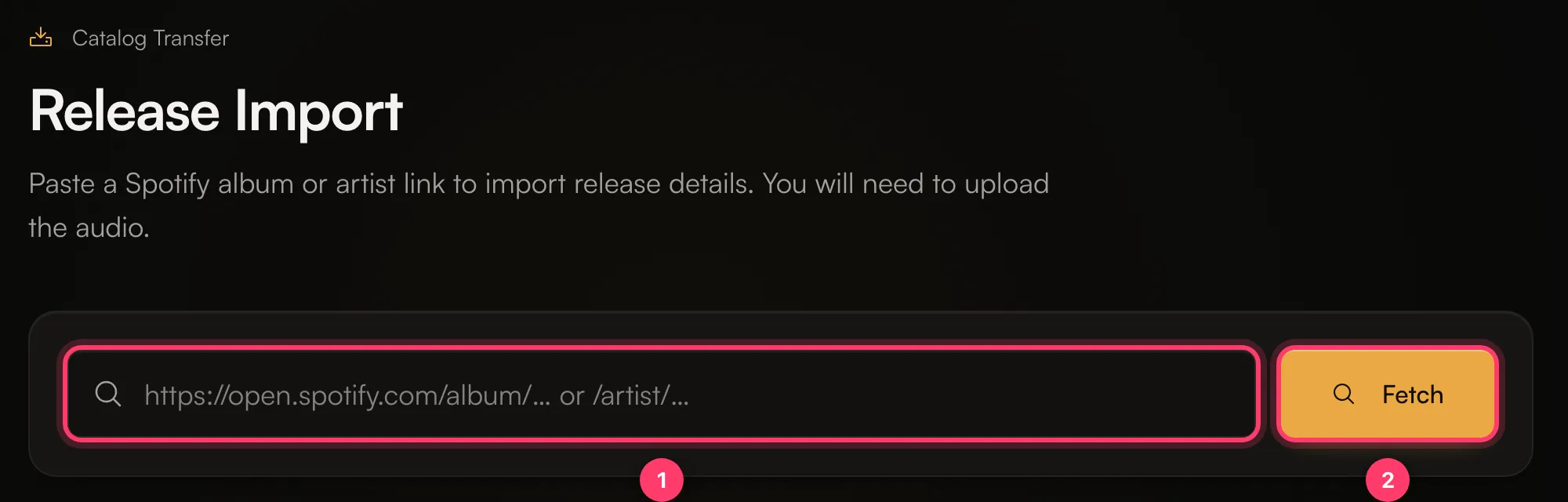
- Paste the Spotify album link and click Fetch.
- Artists: check each artist's links and confirm their legal first and last name. Every main artist needs a Spotify profile and a legal name before you can continue. Click Continue.
- Credits: fill in any songwriter, producer or performer credits that are missing. Click Continue.
- Verify metadata: check the title, UPC, Original release date, Record label / copyright and each track's title and ISRC. Keep the existing ISRCs and UPC unless they're wrong.
- Click Import as draft.
The release opens in the builder as a draft. Upload the audio for each track, check the details, and submit it for review like any other release.
If the original cover isn't square, it isn't brought across. You'll see "Artwork is not 1:1 — we will skip it." Upload a square cover in the builder.
Move several releases from one artist
- Paste a Spotify artist link instead of an album link and click Fetch.
- The Artist catalog page lists the artist's releases grouped by the distributor they're currently with.
- Finish the main artist's details (Spotify profile and legal name).
- Tick a whole distributor group or individual releases, then click Transfer N releases.
Each release is created as a draft. Open each one to upload audio and submit it.
What carries over
- ISRCs for each track, so streams stay linked to the same recordings.
- UPC for the release.
- Original release date.
- Titles, artists, credits that were found, and the label line.
- Each track is marked Previously released.
Common questions
Will I lose my streams or playlist placements?
Not if the ISRCs stay the same. That's why the tool keeps them. Don't change an ISRC unless it's wrong.
The tool says "Already in this account".
A release with the same UPC or album is already on this account. Open the existing draft instead of importing it again.
Can you do the transfer for me?
Yes. Ask your manager, or send us a message from the chat on this page, or email team@ammdistro.com.
When should I take the release down at my old distributor?
Ask us first. We'll tell you when it's safe, so the release doesn't disappear from stores in between.
Related: Previously released music, ISRCs and UPCs · Create a release, step by step · Audio requirements · Check and submit your release
Updated on: 23/10/2026
Thank you!