For talent agencies: manage your roster
If you manage creators, an ANTHM agency account lets you keep your roster in one place, verify the TikTok accounts you manage, and earn a commission on your creators' campaign work. Your commission is split off at the source when a claim is accepted, so you never have to invoice your own talent.
To get an agency account, request access on anthm.tech and choose Agency. See "Request access to ANTHM".
Your roster
In the left menu, click Roster. The top of the page shows Represented, Pending Invites, Open Claims and Commission Available.
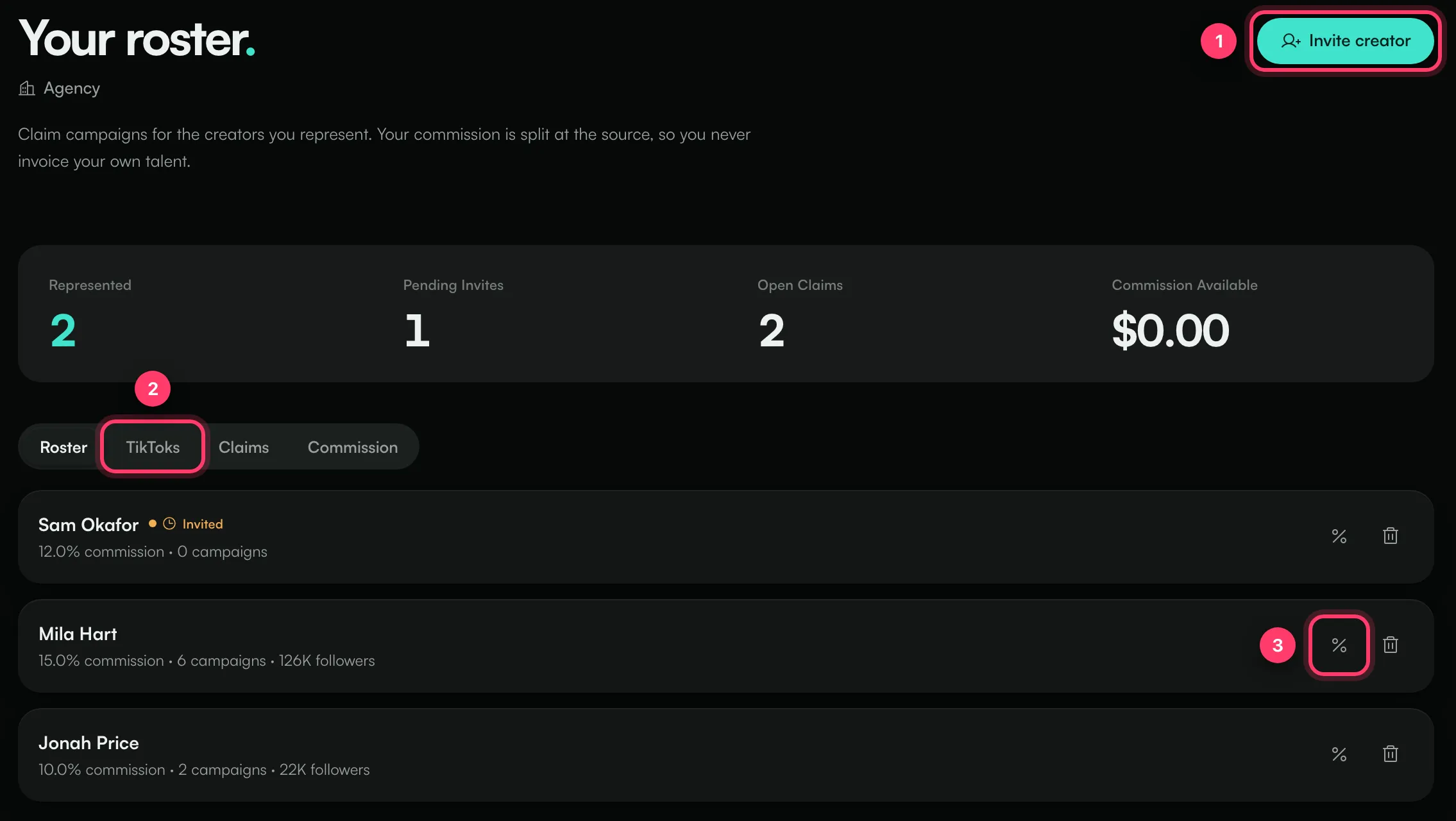
Each creator shows their commission rate, how many campaigns they've done and their follower count. Creators who haven't accepted yet are marked Invited.
Invite a creator
- Click Invite creator.
- Enter the creator's Email.
- Set your Commission, from 0 to 50%. It's a percentage of what the creator earns on each campaign.
- Tick Exclusive if no other agency should be able to add them while they're with you. They can still leave.
- Click Send invite.
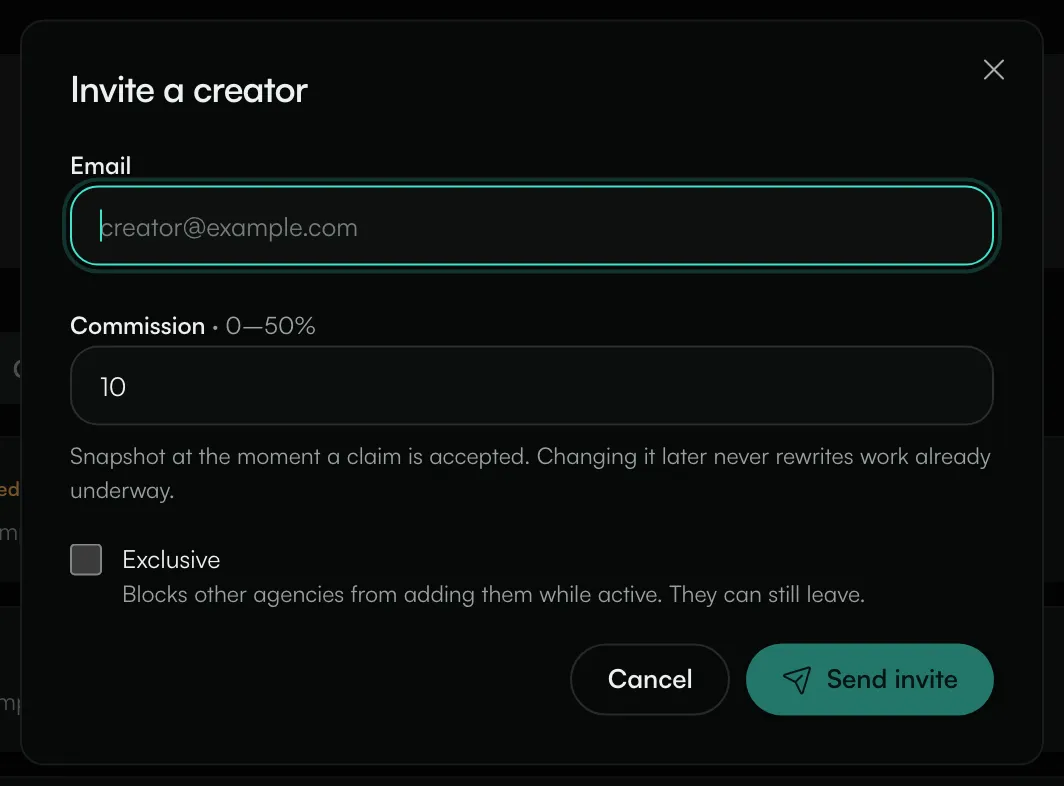
If the creator already has an ANTHM account, they see the invite on their Creator Profile. If not, they join your roster when they sign up.
Change commission or remove a creator
- Click the % button on a creator to edit their commission or exclusive status. A new rate applies to claims accepted from then on. Claims already under way keep the rate they were accepted at.
- Click the bin button to remove a creator from your roster.
Manage TikTok accounts
On the TikToks tab you can register the TikTok accounts you manage, without the creator signing in to ANTHM:
- Copy your Weekly agency link code. It changes each week; the arrow button makes a new one.
- Under Add TikTok handle, enter the handle and click Add.
- Ask the creator to paste the code anywhere in their TikTok bio. We check automatically and mark the handle as verified once the code is found.
Verified handles stay exclusive to your agency.
Claims and commission
- Claims lists the campaign claims made for creators on your roster, with their status and your commission.
- Commission shows Held (the creator's work isn't approved yet), Available and Withdrawn. Your commission lands in your account's balance and is paid out from Earnings, the same way creator earnings are. See "Get paid as a creator".
You only see what your agency earned. Each creator's overall balance, payout method and tax status stay private to them.
When an artist or label invites your agency to a campaign, it appears under Invites in your menu.
For creators: accept or leave an agency
When an agency invites you, open Creator Profile. Under representation you'll see the agency's name, marked as an invitation, with their commission ("…% commission on campaigns they place for you"). Click Accept or Decline.
You can leave an agency at any time with Leave. Campaigns you already started keep the commission you agreed to when they were accepted.
If an agency registered your TikTok but doesn't represent you, click I'm not managed by them on the Verified Reach card on your Creator Profile. We'll review it.
Common questions
Does my commission come out of the creator's pay?
Yes. It's a percentage of what the creator earns on each campaign, split off automatically when the claim is accepted.
Can I change a creator's commission on a live campaign?
No. The rate is fixed when each claim is accepted.
Related: Get paid as a creator · Find and claim a campaign · Request access to ANTHM
Updated on: 23/10/2026
Thank you!