Find and claim a campaign
Open campaigns are listed on the Marketplace. Each one shows the song, the pay, how many spots are left and when it closes. Open a campaign to read the brief, then claim it. Some campaigns accept you straight away; others review your claim first.
Browse campaigns
- In the left menu, open All apps and choose Marketplace.
- Use the search box to search titles and briefs, or narrow the list with the filters: Type, Platform, Payout, Region and Pay range (USD per video). The price buttons, like $25 — $100, are quick pay filters.
- Sort with the menu on the right: Newest, Closing soon, Highest pay, Lowest pay or Best match.
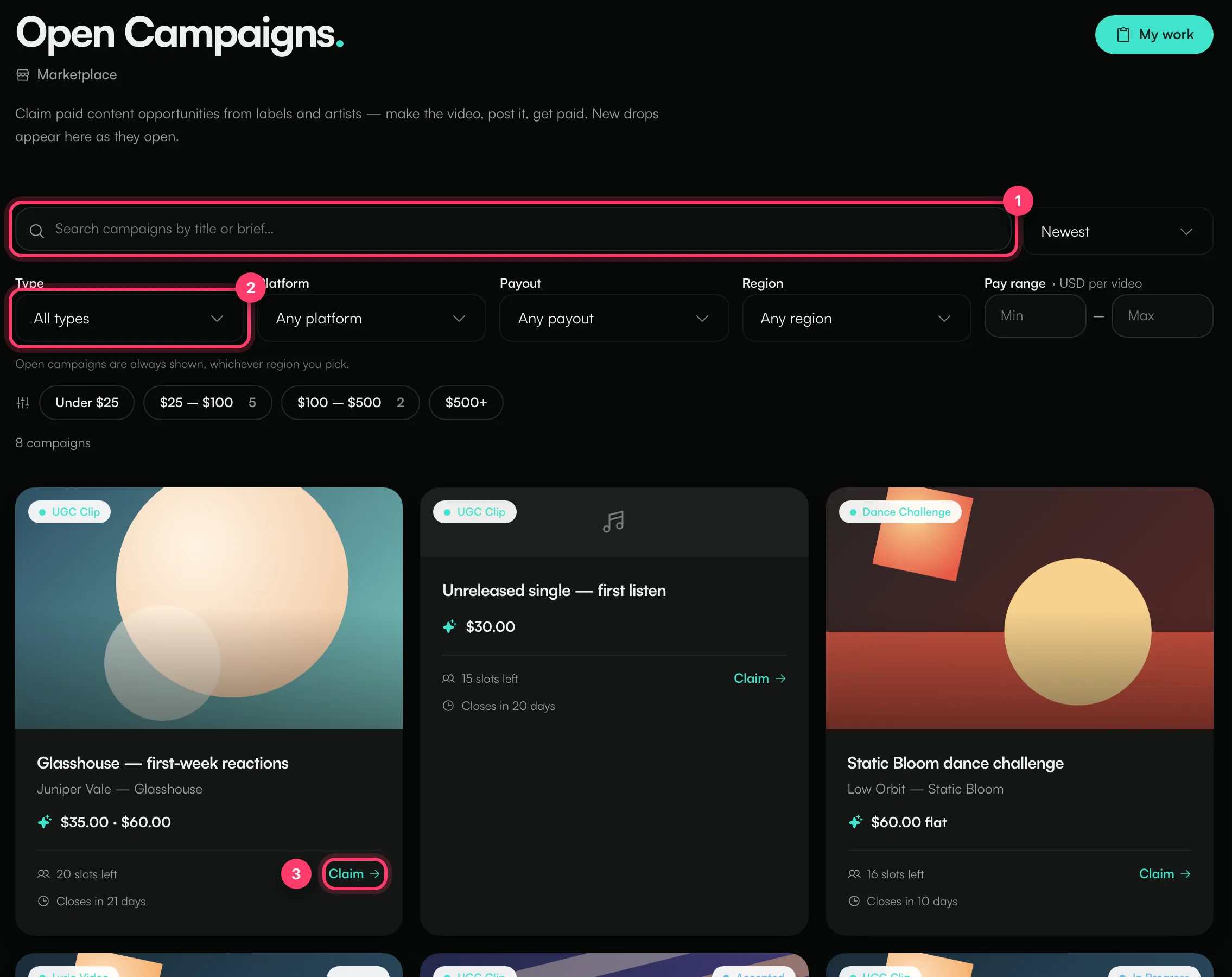
Each card shows the type of video (for example UGC Clip, Dance Challenge or Lyric Video), the pay, the spots left and when it closes. Campaigns you've already claimed show your status on the card.
A campaign marked Mystery Drop keeps the song hidden until it opens.
Read the campaign
Click a card to open it. Before you claim, check:
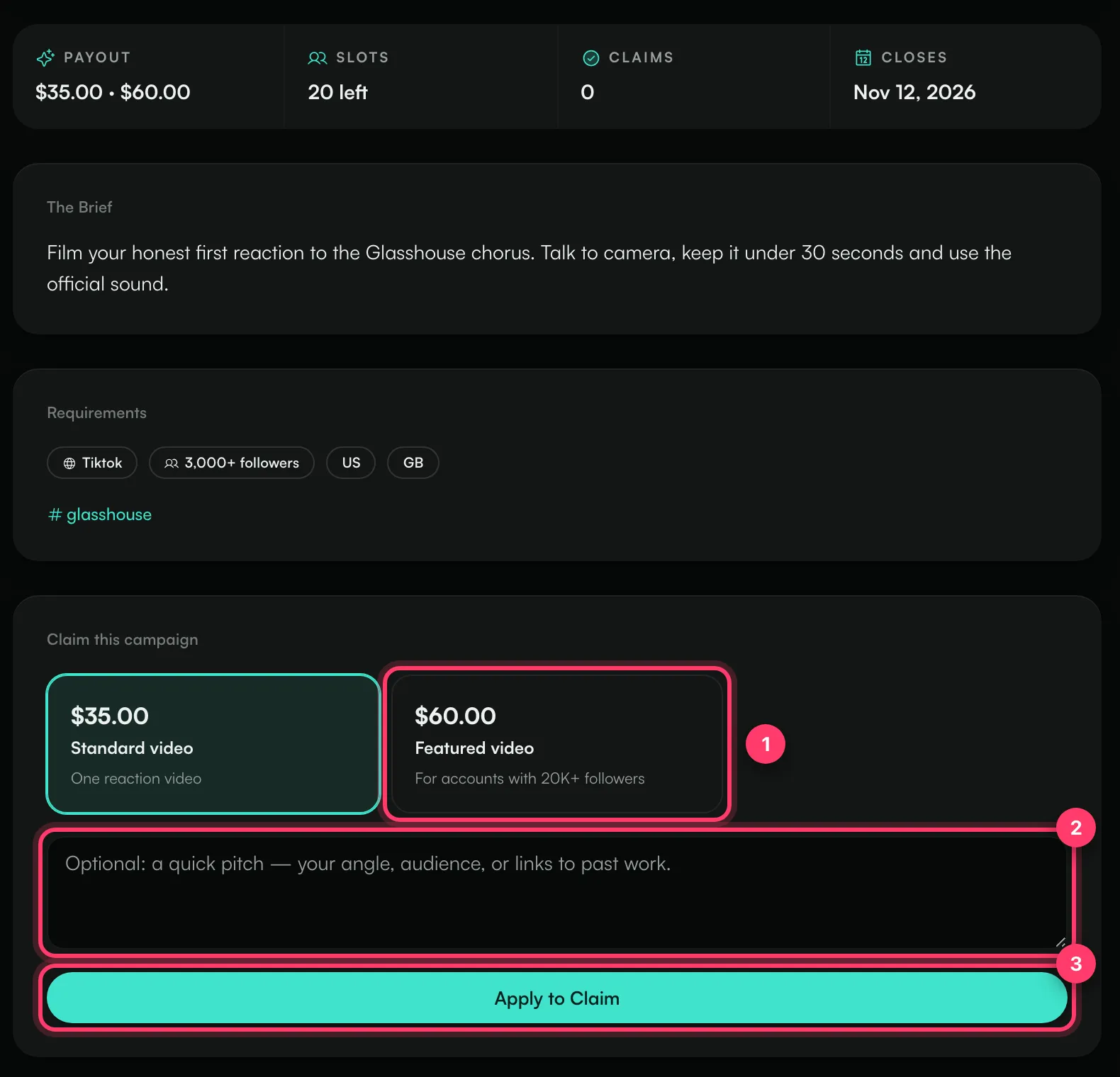
- Payout, Slots, Claims and Closes.
- The Brief: what the artist wants the video to show.
- Requirements: the platform, any minimum follower count (for example "3,000+ followers"), the regions it's open to, hashtags to use, examples, and Use this sound, which opens the sound to use.
- Listen to the track and the 30-Second Preview, when the campaign has them.
Claim it
- If the campaign has more than one pay level, pick the one that fits you, for example Standard video or Featured video. Each level says who it's for.
- Optionally add a pitch: your angle, your audience or links to past work.
- Click Apply to Claim. If the campaign approves claims automatically, the button says Claim & Start — instant approval instead.
You'll see "Claim submitted! Track it under My Work." The claim appears in My Work as Applied until the artist or label accepts it, or as Accepted straight away on instant-approval campaigns.
When you're accepted, we notify you and the money for your video is set aside for the campaign. You then have a set time to deliver. See "Claim statuses, deadlines and reminders".
Invites
When a campaign is matched to you, it shows under Invites in your menu ("Campaigns that matched you — accept to claim the brief on the marketplace."). Accept the invite, then open the listing and claim it as above. Some campaigns are invite-only and can only be claimed this way.
If you can't claim
Message | What it means |
|---|---|
This campaign isn't open for claims. | It's closed, paused or not open yet. |
This listing is invite-only | You need an invite to claim it. |
You have already claimed this listing | Find it in My Work. |
All slots for this listing are already filled | Every spot is taken. |
If your claim was Not Accepted or you cancelled it, you can apply again while the campaign is still open.
Common questions
Can I claim several campaigns at once?
Yes. Just make sure you can deliver each one on time.
Do I get paid for claiming?
No. You're paid for a video that's approved. See "Get paid as a creator".
Related: Submit your video · Sign the creator agreement · Claim statuses, deadlines and reminders · How your rate is worked out
Updated on: 23/10/2026
Thank you!