Make a lyric video
Studio turns your song into a lyric video for TikTok, Reels and Shorts. You upload the track, get the lyrics in, pick the section and the look, and render an MP4 you can download or post straight to TikTok. Studio is on every ANTHM account, with a free plan to start.
Open Studio under Apps in the left menu.

- New project starts a video.
- Plan shows your renders, detections and storage for the month. See "Studio plans and limits".
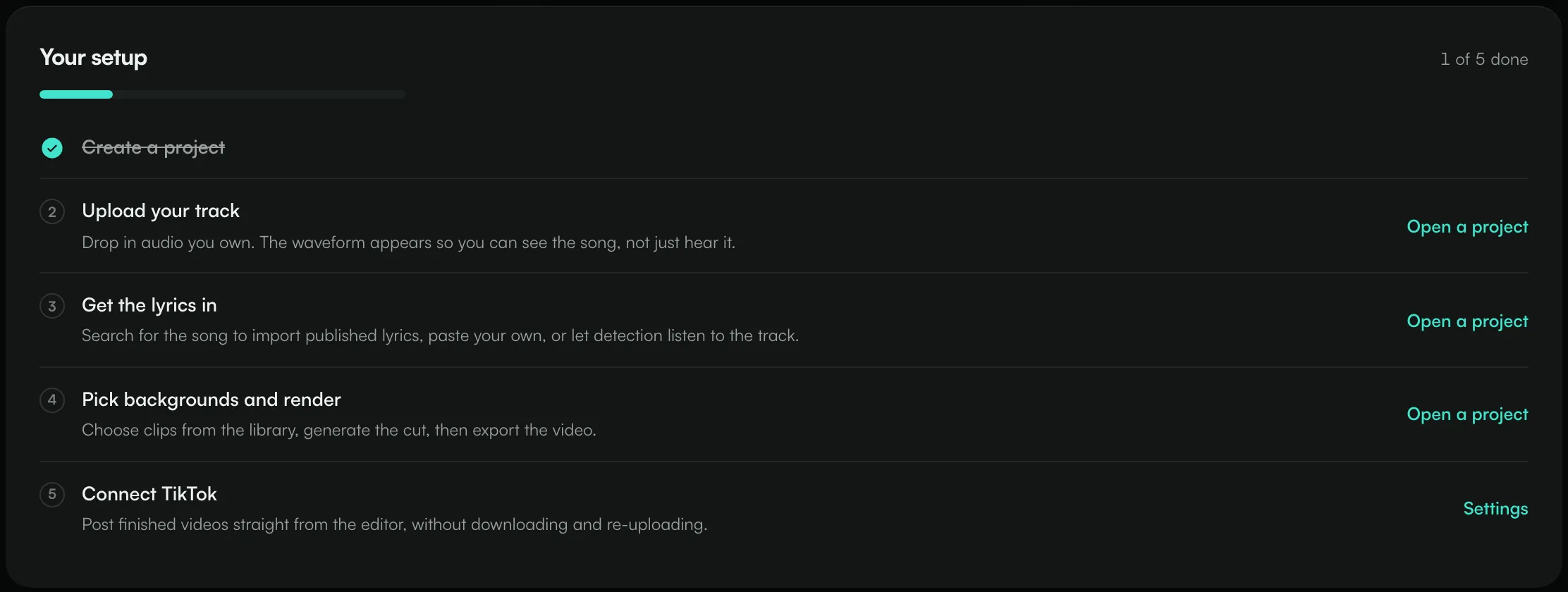
Your setup on the Studio home page lists the steps and ticks them off as you go.
1. Create a project
- Click New project.
- Name it, for example the song name. You can rename it later from the editor.
- Click Create and open.
Each project is one video. You can have as many projects as you like on every plan.
2. Upload your track
Drop your audio file onto the page, or click Choose a file. Upload only audio you hold the rights to.
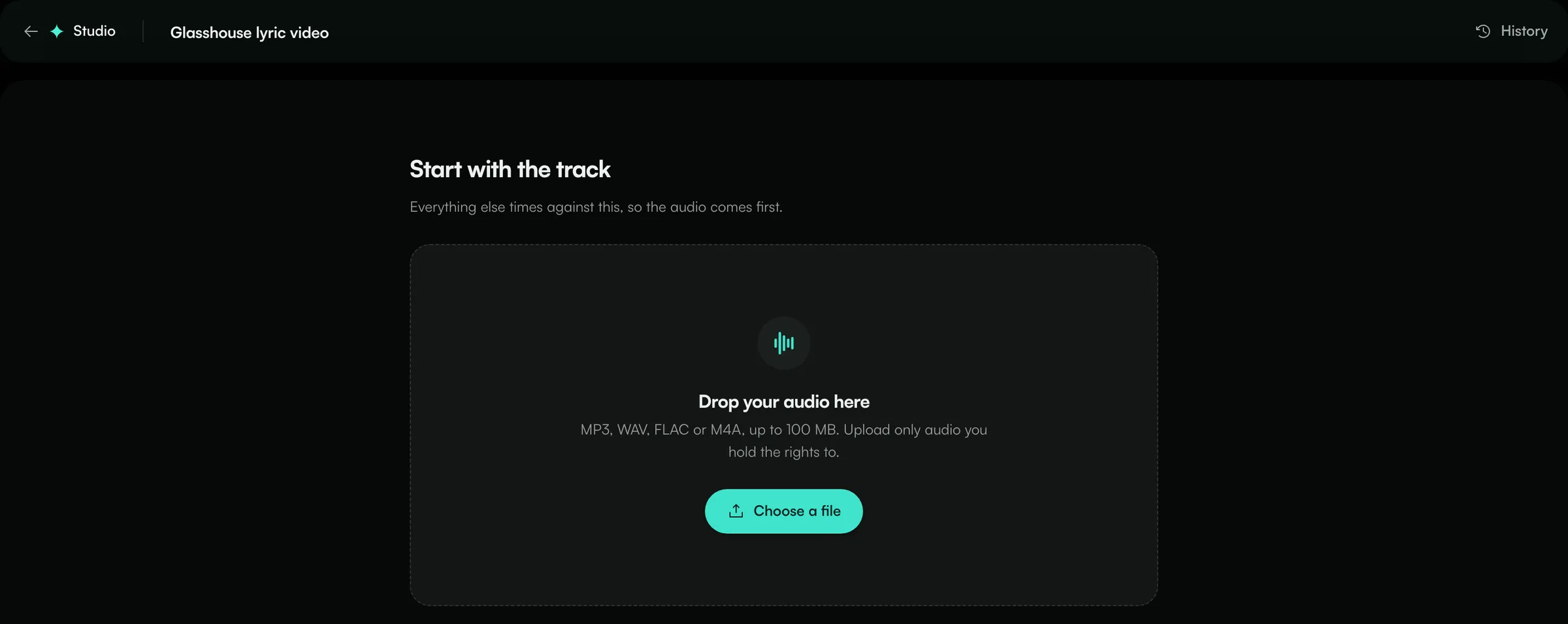
Studio takes MP3, WAV, FLAC and M4A files. The largest file and the longest track you can upload depend on your plan:
Plan | Largest file | Longest track |
|---|---|---|
Free | 100 MB | 10 minutes |
Pro | 2 GB | 15 minutes |
Unlimited | 5 GB | 30 minutes |
To use a different track later, choose Upload a different track. Your section and lyric timings are tied to the current track, so they're cleared.
3. Pick the section
Click Pick a section to choose the part of the song the video uses. Most edits are 15 to 30 seconds. Click Change section to pick again.
4. Get the lyrics in
You have three ways to add lyrics:
- Find lyrics: search for the song name, or the artist and song, and import its published lyrics. If there's more than one recording, pick the right one. You can also Import file (.lrc, .srt, .vtt or .txt). Finding and importing lyrics doesn't use any credits.
- Paste lyrics: paste your own words and click Apply lyrics. Each line shows whether it matched the audio.
- Detect lyrics: Studio listens to the track and writes the lyrics with their timing. You can set the Language or leave it on Detect automatically, and turn on Clean vocal first for busy mixes. A detection uses one of your monthly lyric detections.
Open Word timing to fine-tune when each word appears: drag a word to move it, drag its edge to trim it, or use the arrow keys to nudge it. Censor hides words you don't want on screen.
If you see "No vocals were recognised", the track may be instrumental or heavily processed. Paste or type the lyrics instead.
5. Choose the look
Use the style panels (Cover & scene, Text, Animation, Layout, Background, Chorus and Your watermark) to set how the video looks. Pick background clips from the library or upload your own, then use Auto-edit to cut them to the song. Every style and effect is on every plan.
6. Render
- Choose the quality: 720p (fastest), 1080p (recommended) or 4K (slow to render).
- Choose the shape: 9:16 for TikTok, Reels and Shorts, or 16:9, 1:1 or 4:5.
- Click Generate video.
The progress shows each stage until it says "Your video is ready". Each render uses one of your monthly renders. Rendering the same video again is free, and a render that fails gives its credit back. On the Unlimited plan you can render five versions at once.
On the Free plan, videos have a small ANTHM mark.
7. Download or post
- Click Download to save the MP4. All your finished videos are also in Videos.
- Click TikTok to post it. See "Post a video to TikTok from Studio".
Exports are removed after 30 days. The project keeps everything needed to make them again, so you can re-export any time.
Common questions
I see "This month's renders are used".
You've used this month's renders on your plan. They come back on the 1st of next month, or you can upgrade. See "Studio plans and limits".
My file won't upload.
Check the format (MP3, WAV, FLAC or M4A), the file size and the track length for your plan. If your storage is full, delete a project you've finished with.
Can I use a song I don't own?
Only upload audio you hold the rights to.
Need help?
Send us a message from the chat on this page, or email team@ammdistro.com.
Related: Studio plans and limits · Post a video to TikTok from Studio · Projects: one place for each release
Updated on: 23/10/2026
Thank you!